
Mac Dictation: Everything You Need to Know in 2026
Complete guide to Mac dictation — how to set it up, every voice command, troubleshooting when it breaks, and what to do when built-in dictation isn't enough.
Mac dictation is built into every Mac. You can turn it on in System Settings, press a keyboard shortcut, and start talking. It works in any app that accepts text, from Notes to Chrome to Slack.
But most people either don't know it exists, can't get it to work, or hit its limits within the first few minutes. This guide covers all three — how to set it up, every voice command worth knowing, and what to do when it breaks or isn't enough.
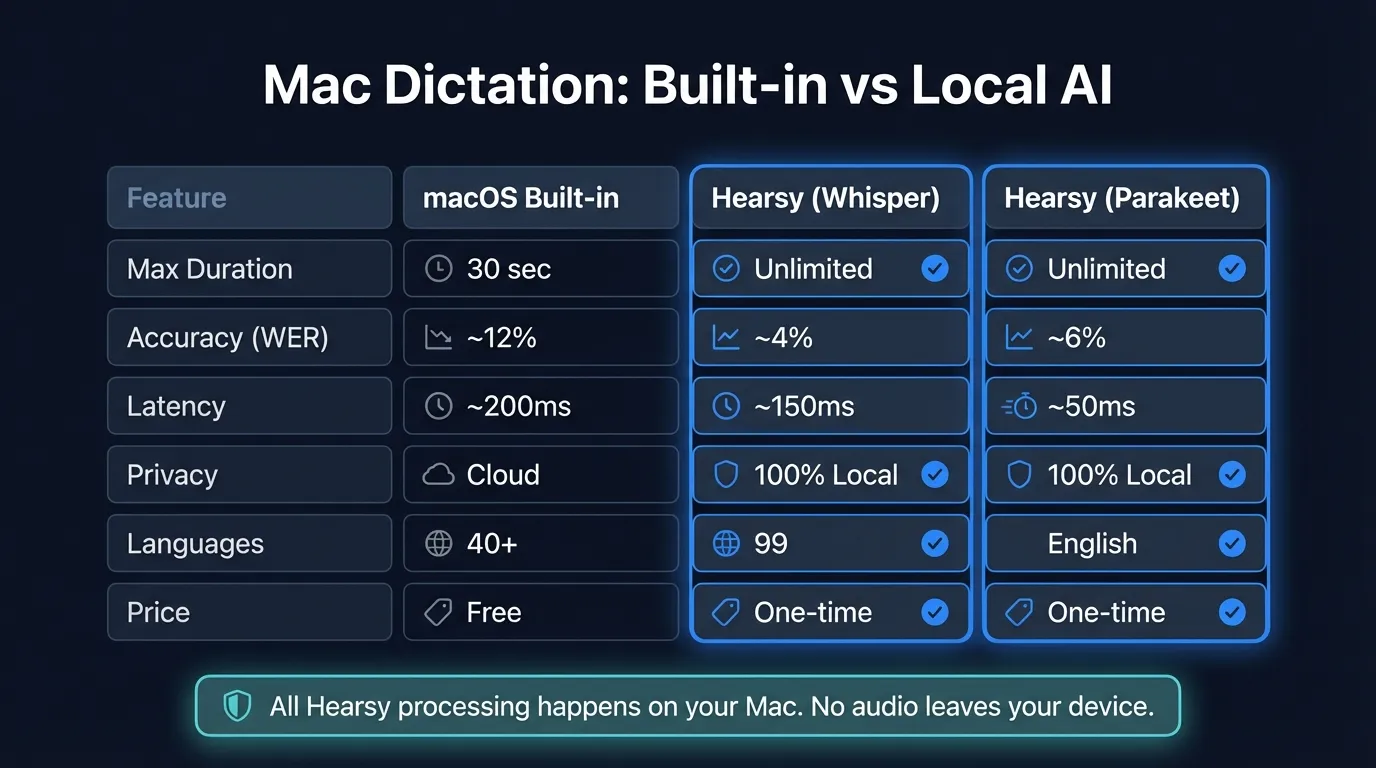
Here's a visual overview of Mac dictation setup, commands, and limitations:
How to set up Mac dictation#
Setup takes about 30 seconds:
- Open System Settings (click the Apple menu in the top-left corner)
- Click Keyboard in the sidebar
- Scroll down to Dictation and toggle it on
- Click Enable in the confirmation dialog
That's it. Your Mac will download an on-device speech model if you're on Apple Silicon (M1 or later). On Intel Macs, audio gets sent to Apple's servers for processing.
Choose your keyboard shortcut#
The default shortcut is pressing the Control key twice. You can change this in the same Dictation settings panel. The options are:
- Press Control key twice (default)
- Press Fn key twice
- Press either Command key twice
- Press the Microphone key (if your keyboard has one)
Pick whichever doesn't conflict with your other shortcuts. I use the Fn key twice since I rarely use it for anything else.
Select your microphone#
Under Microphone source, you'll see "Automatic" selected by default. This usually works fine. If you're using an external microphone or headset, select it manually — the automatic setting sometimes picks the wrong input.
You can verify your mic is working in System Settings > Sound > Input. Speak and watch the level meter. If it doesn't move, your Mac isn't hearing you.
Turn on auto-punctuation#
In the Dictation settings, toggle Auto-punctuation on. This tells macOS to insert commas, periods, and question marks automatically based on your speech patterns. It's not perfect — it sometimes puts a period where you wanted a comma — but it saves you from saying "period" after every sentence.
Mac dictation voice commands#
Knowing the voice commands is what separates "dictation is useless" from "dictation actually works." Here's every command worth memorizing.
Punctuation#
| Say this | You get |
|---|---|
| "period" or "full stop" | . |
| "comma" | , |
| "question mark" | ? |
| "exclamation mark" | ! |
| "colon" | : |
| "semicolon" | ; |
| "dash" | -- |
| "hyphen" | - |
| "ellipsis" | ... |
| "quote" / "end quote" | " " |
| "open parenthesis" / "close parenthesis" | ( ) |
| "open bracket" / "close bracket" | [ ] |
Formatting#
| Say this | What it does |
|---|---|
| "new line" | Inserts a line break |
| "new paragraph" | Starts a new paragraph |
| "tab key" | Inserts a tab |
| "numeral" | Formats the next phrase as a number |
| "roman numeral" | Formats the next phrase as Roman numerals |
Capitalization#
| Say this | What it does |
|---|---|
| "caps on" / "caps off" | Toggles Title Case |
| "all caps" | Makes the next word UPPERCASE |
| "all caps on" / "all caps off" | Toggles ALL CAPS mode |
| "no space on" / "no space off" | Removes spaces between words |
Symbols#
Say "at sign" for @, "ampersand" for &, "asterisk" for *, "dollar sign" for $, "euro sign" for the euro symbol, "percent sign" for %, "copyright sign" for the copyright symbol, and "degree sign" for the degree symbol.
The full list is in Apple's dictation commands reference.
What Mac dictation does well#
Credit where it's due — Apple's built-in dictation has improved a lot since the Apple Silicon transition.
On-device processing on Apple Silicon. On M1 and later Macs, dictation runs entirely on your Mac. No internet required. This means faster results and better privacy than the old Intel-era cloud processing.
Works in any text field. Dictation is system-wide. Click into any text field in any app, trigger the shortcut, and start talking. No plugins, no extensions, no per-app setup.
Auto-punctuation. The automatic comma and period insertion works well enough for casual dictation. It catches most sentence boundaries and adds punctuation in roughly the right places.
No cost, no setup. It's free, it's already installed, and it takes 30 seconds to turn on.
Continue reading
Better Speech to Text for Mac
Hearsy uses AI models that run directly on your Mac — faster and more accurate than built-in dictation.
Where Mac dictation falls short#
Built-in dictation is good enough for short messages. For anything longer, you'll hit these walls.
The time limit#
Apple doesn't publish an official limit, but built-in dictation stops listening after roughly 30 to 60 seconds of continuous speech. The microphone icon disappears, and you have to trigger the shortcut again. If you're dictating more than a few sentences — an email, a document, meeting notes — you'll be constantly restarting.
No text cleanup#
What you say is what you get. Every "um," every false start, every run-on sentence goes straight into your document. There's no AI cleanup, no grammar correction, no reformatting. You dictate, then you spend time editing.
Accuracy gaps with technical terms#
Built-in dictation handles everyday English well. But if you dictate technical jargon, brand names, programming terms, or domain-specific vocabulary, accuracy drops. It doesn't learn from your corrections, and you can't add custom words to its vocabulary.
No continuous dictation#
You can't just talk for 10 minutes straight. The system is designed for short bursts — a sentence or two at a time. This makes it unusable for long-form writing, meeting transcription, or any workflow where you want to speak freely without interruptions.
Fixing Mac dictation when it stops working#
Dictation breaking after a macOS update is almost a tradition at this point. Here are the fixes that actually work, in order from easiest to most involved.
1. Toggle dictation off and on#
Go to System Settings > Keyboard > Dictation, turn it off, wait 10 seconds, turn it back on. This forces macOS to re-download the speech model and reset the dictation service.
2. Check your microphone#
Go to System Settings > Sound > Input. Make sure the correct microphone is selected (not "Automatic" — pick it manually). Speak and confirm the input level meter moves.
If you're using AirPods or a Bluetooth headset, disconnect and reconnect them. Bluetooth audio devices are a frequent source of dictation failures.
3. Restart the speech service#
Open Terminal (you'll find it in Applications > Utilities) and run:
killall corespeechd
This kills the background process that handles dictation. macOS restarts it automatically. This fix works instantly for many users and is the single most reliable troubleshooting step.
4. Check your language settings#
Go to System Settings > General > Language & Region. Make sure your primary language matches one of the languages selected in Dictation settings. Mismatched language settings cause dictation to silently fail.
On macOS Sequoia, some users can't remove English (US) from dictation languages due to Apple Intelligence restrictions. If this affects you, changing your system region to United Kingdom has been reported as a workaround.
5. Reset dictation completely#
If nothing else works:
- Turn off dictation in System Settings
- Restart your Mac
- Open Terminal and run:
sudo rm -rf /Library/Speech/Recognizers/ - Restart again
- Re-enable dictation
This forces macOS to re-download all speech recognition models from scratch. Only use this as a last resort — the download can be several hundred megabytes.
6. Check for macOS updates#
Apple regularly patches dictation bugs in point releases. Go to System Settings > General > Software Update and install any available updates.
When built-in dictation isn't enough#
If you need continuous dictation without time limits, automatic text cleanup, or better accuracy on technical terms, the built-in option won't cut it.
Third-party dictation apps fill these gaps. Apps like Hearsy run speech recognition models (Whisper, Parakeet) directly on your Mac, with no time limits on continuous dictation and optional AI post-processing to clean up grammar, remove filler words, and format text as emails, code comments, or polished prose. Other options include VoiceInk and SuperWhisper, each with different tradeoffs on speed, accuracy, and pricing.
For a broader look at all the options, see our guide on speech to text on Mac.
Tips for better dictation results#
Whether you use Apple's built-in dictation or a third-party app, these habits improve accuracy:
Speak in full sentences. Dictation models perform better with complete thoughts. Fragments and single words get misinterpreted more often than full sentences with clear context.
Pause before punctuation commands. If you're manually saying "period" or "comma," leave a brief pause before and after the command. Running commands together with regular speech causes them to be transcribed as text instead of executed as commands.
Reduce background noise. Close windows, mute notifications, move away from fans and air conditioners. Even on-device models lose accuracy in noisy environments. A directional microphone or headset helps more than any software setting.
Don't shout. Speaking louder doesn't improve accuracy. A normal conversational volume at a consistent distance from the microphone gives the best results.
Use a consistent microphone. If you switch between your MacBook's built-in mic and an external mic, the dictation model needs to adjust each time. Stick with one input device when possible.
Frequently asked questions#
How do I turn on dictation on my Mac?#
Open System Settings, click Keyboard, scroll to Dictation, and toggle it on. The default shortcut is pressing the Control key twice.
Why is my Mac dictation not working?#
The most common fixes are restarting the corespeechd process via Terminal (killall corespeechd), checking your microphone input in System Settings > Sound, and making sure dictation is enabled in System Settings > Keyboard.
Does Mac dictation work offline?#
On Apple Silicon Macs (M1 and later), dictation runs on-device and works offline. On Intel Macs, standard dictation requires an internet connection to process audio on Apple's servers.
What is the time limit for Mac dictation?#
Apple doesn't publish an official limit, but built-in dictation typically stops listening after about 30 to 60 seconds of continuous speech. Third-party apps like Hearsy have no time limit.
Can I use Mac dictation in any app?#
Yes. Mac dictation works in any app that accepts text input — Safari, Chrome, Mail, Notes, Pages, Slack, Notion, and any other app with a text field.
Ready to Try Voice Dictation?
Hearsy is free to download. No signup, no credit card. Just install and start dictating.
Download Hearsy for MacmacOS 14+ · Apple Silicon · Free tier available