
Voice to Text in Microsoft Word on Mac: 3 Ways That Actually Work
How to use voice to text in Microsoft Word on Mac. Covers Word's built-in Dictate feature, macOS dictation, and system-wide apps — with setup steps for each.
Three options exist for using voice to text in Microsoft Word on Mac: Word's own Dictate feature, macOS system dictation, and a system-wide dictation app. They have meaningfully different requirements and trade-offs.
Word's built-in Dictate needs a Microsoft 365 subscription and an internet connection. macOS dictation is free but stops after about 30-60 seconds of continuous speech. A system-wide app removes both constraints but costs money.
Here's how the three options compare at a glance:
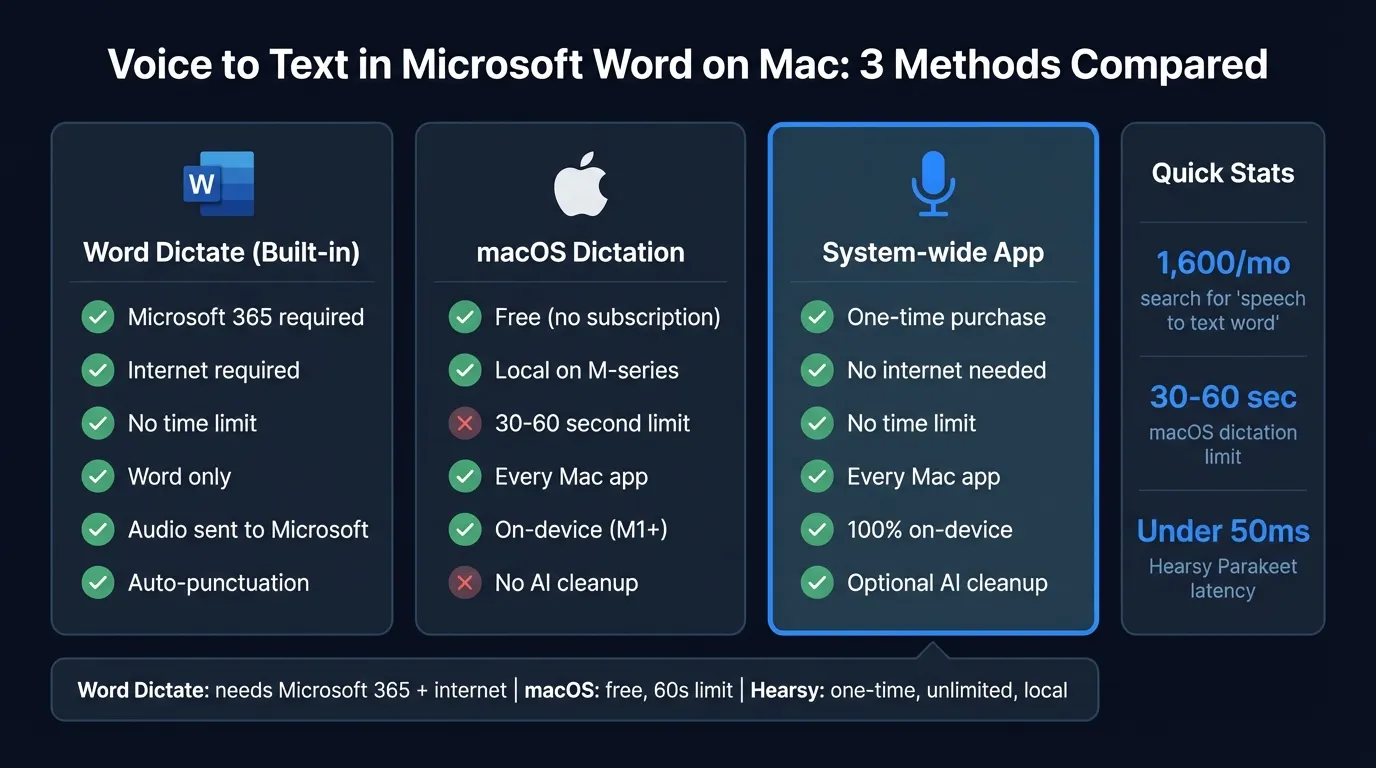
Here's how each one works.
Option 1: Word's built-in Dictate#
Word for Mac has had a Dictate button in the ribbon since late 2019. It's the most obvious starting point.
Requirements#
- Microsoft 365 subscription — Dictate is not available on perpetual Office licenses (Office 2019, Office 2021). If you bought Word once and don't have a subscription, this option won't appear in your ribbon.
- Internet connection — Word's Dictate sends audio to Microsoft's servers for transcription. It doesn't work offline.
- Microphone permission — Word needs Microphone access in System Settings > Privacy & Security > Microphone.
Setup#
- Open System Settings, go to Privacy & Security > Microphone, and make sure Microsoft Word is toggled on
- Open a Word document
- Click the Home tab in the ribbon
- Click the Dictate button (microphone icon, usually in the Voice section on the right side of the ribbon)
- Wait for the red recording indicator to appear
- Speak naturally — text appears as you talk
- Click Dictate again or press Option (⌥) + F1 to stop
You can also change the dictation language using the dropdown next to the Dictate button. Word supports over 30 languages for dictation.
How it works in practice#
Word's transcription accuracy is solid for plain speech in standard English. The UI is simple: a floating toolbar appears while recording with options to adjust language and punctuation. Auto-punctuation works decently, though it misses commas more often than periods.
The experience breaks down in two places:
Internet drop. Word's Dictate stops immediately if the connection becomes unstable. You don't always get a clear error — the button just goes gray. If you're on a spotty connection or working in a location with unreliable Wi-Fi, expect interruptions.
Subscription wall. If your Microsoft 365 subscription lapses, the Dictate button disappears from the ribbon. For someone who uses dictation as part of their writing workflow, that's a hard dependency to take on.
Best for: Microsoft 365 subscribers who want dictation built into Word's own interface and don't mind audio going through Microsoft's servers.
Option 2: macOS built-in dictation#
macOS system dictation works in any text field on your Mac — including Word — with no app-specific setup and no subscription.
Setup#
- Open System Settings and click Keyboard in the sidebar
- Scroll to Dictation and toggle it on
- Click Enable to confirm
- On M-series Macs, macOS downloads a local speech model (takes under a minute)
The default shortcut is pressing Control twice. You can change this in the same Keyboard settings panel.
How to dictate in Word#
- Open your Word document
- Click where you want to type
- Press Control twice to start dictation
- Speak naturally
- Pause or press the shortcut again to stop
A small floating microphone indicator appears near the cursor while recording. Text appears in real time.
The 30-60 second limit#
macOS dictation stops automatically after roughly 30-60 seconds of continuous speech. This is consistent behavior across macOS versions and there's no setting to extend it. For short paragraphs or quick notes, you won't hit it. For longer passages — multiple paragraphs, a full section, anything over 100 words — you'll be restarting dictation repeatedly.
The other constraint is that macOS dictation on Intel Macs routes audio through Apple's servers. On M-series Macs (M1 and later), it processes locally, which is why the initial download is required.
Language and accuracy#
macOS dictation supports a wide range of languages through the system keyboard settings. You can add multiple dictation languages in System Settings > Keyboard > Dictation and switch between them. Accuracy is generally good for common speech but struggles more than dedicated engines with technical jargon, proper nouns, and domain-specific vocabulary. There's no way to train or customize the model.
Best for: Occasional short-form dictation, users without a Microsoft 365 subscription, anyone who wants zero additional apps.
Continue reading
Dictate into Any App on Mac
Gmail, Slack, Word, Notion — Hearsy works everywhere. Just press a key and speak.
Option 3: System-wide dictation app#
A system-wide dictation app uses the same hotkey whether you're in Word, Gmail, Slack, or Notes. No time limit. No subscription required.
Hearsy is one such app. It runs a local speech model on your Mac and pastes the result into whatever app is in focus. It works in Word the same way it works everywhere else — for a detailed walkthrough of setting up Hearsy with Microsoft Word, including tips and use cases, see the Hearsy + Microsoft Word workflow guide.
How system-wide apps work with Word#
The approach is fundamentally different from Word's built-in Dictate. Instead of integrating inside Word, a system-wide app listens at the OS level, transcribes your speech, and simulates a paste (Cmd+V) into whatever app has focus. This means:
- No per-app setup — the same hotkey works in Word, Google Docs, Slack, email, or Terminal
- No dependency on the app's own dictation features — it works even if Word's Dictate button is missing or broken
- Consistent experience — your muscle memory transfers across every app
The trade-off is that you're running a separate application. It needs Accessibility permission (to simulate the paste keystroke) and Microphone permission. Both are one-time grants.
Engine quality matters#
Not all system-wide dictation apps are equal. The transcription engine determines accuracy, especially for less common words, technical terms, and non-English text. Look for apps that run models locally rather than routing audio through a server — this affects both privacy and latency.
Hearsy, for example, offers two local engines: Parakeet (English-optimized, under 50ms latency on Apple Silicon) and Whisper Large V3 (99 languages, 4.2% word error rate on clean speech per OpenAI's 2023 evaluation on LibriSpeech). Both run entirely on your Mac.
Best for: Writers who dictate across multiple apps, users who want local-only processing, anyone who finds per-app setup friction irritating.
AI cleanup: bridging spoken and written prose#
Spoken prose and written prose sound different. When you dictate a paragraph in one take, you naturally repeat words, use verbal connectors ("um, so, basically"), and build run-on sentences that work when spoken but look messy on the page.
This gap is why raw dictation often feels like a rough draft that needs heavy editing. The faster you dictate, the more cleanup is typically needed afterward.
Some system-wide dictation apps include an AI enhancement step that processes your transcription before pasting. This can remove filler words, tighten sentence structure, and improve punctuation without rewriting your meaning. For document writing, this kind of post-processing typically reduces word count by 15-20% on a 200-word spoken passage while keeping the original idea intact.
Word's built-in Dictate offers basic auto-punctuation but no sentence-level cleanup. macOS dictation has no post-processing at all. If you dictate long-form content regularly, AI enhancement is worth considering regardless of which base method you use — whether it's built into your dictation app or applied as a separate editing step.
Comparing the three methods#
| Word Dictate | macOS dictation | System-wide app (e.g. Hearsy) | |
|---|---|---|---|
| Subscription required | Microsoft 365 | None | One-time purchase |
| Internet required | Yes | M1+: No / Intel: Yes | No |
| Time limit | None | 30-60 seconds | None |
| Works in Word | Yes | Yes | Yes |
| Works in other apps | No | Yes | Yes |
| Audio stays on device | No (Microsoft cloud) | M1+: Yes / Intel: No | Yes (if local engine) |
| AI cleanup | Basic auto-punctuation | No | Varies by app |
| Setup complexity | Subscription + permission | System setting toggle | App install + 2 permissions |
If you're already paying for Microsoft 365 and you do most of your writing in Word, Word's built-in Dictate is the path of least resistance.
If you don't have a subscription or want dictation that works everywhere with no internet dependency, macOS dictation covers short passages and a system-wide app covers everything else.
Common issues and fixes#
Word's Dictate button is missing from the ribbon. This usually means you don't have an active Microsoft 365 subscription. Perpetual licenses (Office 2019, Office 2021) don't include Dictate. Check your subscription status at account.microsoft.com. If you do have a subscription, try signing out of Word and signing back in — the button sometimes disappears after an update until you re-authenticate.
Word's Dictate stops unexpectedly. Check your internet connection first. If the connection is fine, check System Settings > Privacy & Security > Microphone — Word needs explicit permission. Removing Word from the list and re-adding it sometimes resolves permission glitches. Also check whether your Bluetooth headset microphone is disconnecting — Word's Dictate is sensitive to audio input changes mid-session.
macOS dictation doesn't appear to be listening. The Control+Control shortcut occasionally conflicts with other app shortcuts. Try changing it in System Settings > Keyboard > Dictation to Fn twice or a custom key. If it was working previously and stopped, toggle Dictation off and back on in the same settings panel — this re-downloads the language model on M-series Macs.
Text appears in the wrong place. This happens when focus shifts away from the Word window during dictation. Keep Word in the foreground while speaking and don't click other windows until you've finished. This applies to all three methods — Word's Dictate, macOS dictation, and system-wide apps all insert text wherever the cursor currently is.
Dictation accuracy is poor. All three methods perform best with a good microphone and low background noise. If you're using a MacBook's built-in microphone, face the screen and speak at a normal volume. External microphones (even inexpensive USB ones) meaningfully improve accuracy across all dictation methods.
For a broader look at macOS dictation options across apps, see the best dictation software for Mac guide and the Mac dictation guide.
For writers specifically, the voice dictation for writers guide covers workflow and habits for longer-form dictation projects.
Frequently asked questions#
How do I use voice to text in Microsoft Word on Mac?#
Click the Dictate button in Word's Home ribbon (requires Microsoft 365 and internet), use macOS system dictation with Control+Control, or use a system-wide app like Hearsy with a custom hotkey. All three paste text at your cursor position in Word.
Does Microsoft Word have built-in dictation on Mac?#
Yes. Word 365 for Mac includes a Dictate button in the Home tab. It processes audio through Microsoft's cloud servers and requires both a Microsoft 365 subscription and an internet connection.
Can I use speech to text in Word without a Microsoft 365 subscription?#
Yes. macOS built-in dictation (Control twice) works in Word for free with no subscription. The 30-60 second continuous speech limit applies. System-wide dictation apps like Hearsy are one-time purchases that also don't require a Microsoft subscription and have no time limit.
Why isn't Word's Dictate button working on my Mac?#
The most common causes: no active Microsoft 365 subscription, no internet connection, or missing Microphone permission. Check System Settings > Privacy & Security > Microphone and make sure Microsoft Word is listed and enabled. If you recently updated Word, try signing out and back into your Microsoft account.
What is the best way to dictate long documents in Word on Mac?#
For documents over a few paragraphs, use a system-wide dictation app. macOS built-in dictation stops at 30-60 seconds and requires manual restart, which breaks flow on longer passages. Word's Dictate has no time limit but needs a subscription and internet. A system-wide app like Hearsy offers unlimited dictation with local processing.
Ready to Try Voice Dictation?
Hearsy is free to download. No signup, no credit card. Just install and start dictating.
Download Hearsy for MacmacOS 14+ · Apple Silicon · Free tier available
Related Articles
Dictate Emails in Gmail on Mac: Step-by-Step Guide
11 min read
Best Voice Recorder Apps for Mac (with Transcription)
8 min read
Best Voice Note-Taking Apps for Mac in 2026
10 min read
Voice Journaling on Mac: Best Apps and Workflows
10 min read
Voice Dictation for Writers: Write Faster, Edit Less
14 min read