
Best Voice Recorder Apps for Mac (with Transcription)
Compare the best voice recorder apps for Mac in 2026 — Voice Memos, QuickTime, MacWhisper, Audacity, and apps that record and transcribe at the same time.
Most people searching for a Mac voice recorder want one of two things: a clean audio file, or a text transcript they can actually use. Those are different problems, and different apps solve them.
This guide covers the best options for both — and points out where the "record, then transcribe" workflow has an unnecessary step that you can skip entirely.
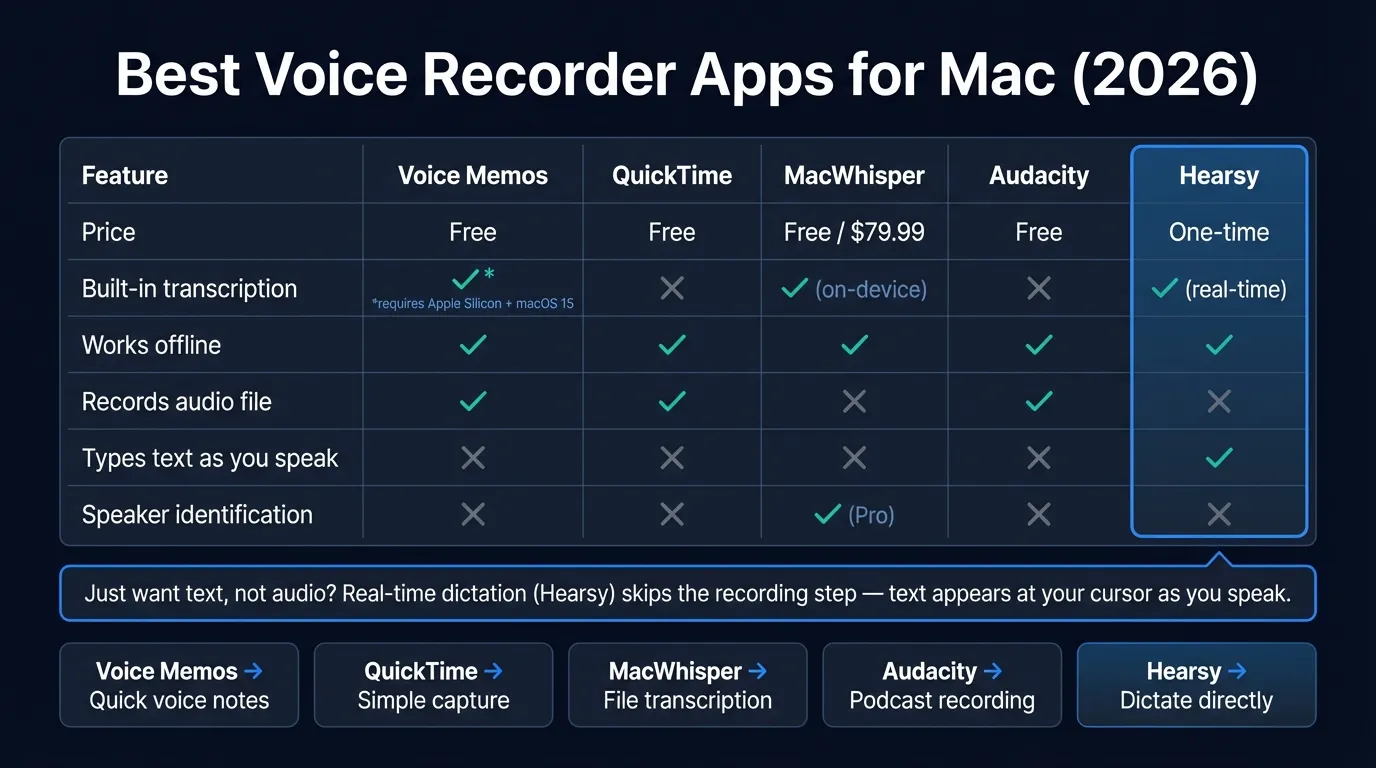
Here's how the main Mac voice recorder apps compare on transcription, privacy, and price:
Quick comparison#
| App | Price | Transcription | Works offline | Records system audio |
|---|---|---|---|---|
| Voice Memos | Free | Yes (Apple Silicon + macOS 15+) | Yes | No |
| QuickTime Player | Free | No | Yes | No |
| MacWhisper | Free / $79.99 Pro | Yes (on-device) | Yes | No |
| Audacity | Free | No | Yes | No (needs loopback driver) |
| Hearsy | One-time purchase | Yes (real-time) | Yes | No |
Voice Memos#
Voice Memos is Apple's built-in recorder and the obvious starting point. On macOS Sequoia (15+) with an Apple Silicon Mac, it also auto-transcribes every recording after you finish — for free, on-device.
The transcription works well for clear speech in a quiet environment. Tap the transcript to jump to that moment in the audio; the text and playback are linked. You can also import existing M4A audio files and get a transcription of those.
What it does well:
- Zero setup, always there
- Transcription is on-device (nothing uploaded)
- iCloud sync across all your Apple devices
- Apple Intelligence writing tools can summarize or reformat transcripts
Limitations:
- Transcription requires Apple Silicon AND macOS 15. Intel Macs get no transcription.
- Only imports M4A files. If you have an MP3 or WAV, convert it first in QuickTime.
- No speaker identification — it won't label who said what.
- English-focused; availability varies by region.
For casual recordings — interviews, meeting notes, voice memos to yourself — Voice Memos handles everything adequately if you're on a recent Mac. If you're on Intel or need more format support, you'll need something else.
QuickTime Player#
QuickTime is not really a voice recorder app — it's a media player that happens to record. Choose File > New Audio Recording, pick your microphone, and click record. The output is an M4A file.
That's essentially all it does. No transcription, no editing beyond basic trimming, no effects.
It's useful when you need a quick recording and don't want to think about it. For anything more — editing, transcription, recording multiple sources — open a different app.
One recurring frustration: QuickTime (like Audacity and most Mac recording apps) cannot capture internal audio on macOS without a loopback driver like BlackHole (free, open-source). macOS's Core Audio architecture blocks direct internal audio access from third-party apps. If you need to record what your Mac is playing — a video call, a YouTube video — install BlackHole first.
MacWhisper#
MacWhisper is the best app on this list specifically for transcribing audio files. You record somewhere else (Voice Memos, QuickTime, a field recorder), then drop the file into MacWhisper and get back a transcript.
It runs OpenAI's Whisper models entirely on your Mac. Nothing is uploaded. The free version includes the Tiny, Base, and Small models — good enough for clear speech. The Pro license ($79.99 one-time via Gumroad) adds:
- Large V3 Turbo model (higher accuracy, especially on accents and technical vocabulary)
- Speaker identification (who said what)
- Batch transcription for multiple files
- Translation to English from 100+ languages
- Meeting recording from Zoom, Teams, and similar apps
If you record interviews, lectures, or meetings and need accurate transcripts, MacWhisper Pro is the most capable local option. The $79.99 price is a one-time purchase — no subscription.
What it doesn't do: MacWhisper is not a dictation app. It transcribes recorded files. It won't type into your Google Doc as you speak.
Continue reading
Dictate into Any App on Mac
Gmail, Slack, Word, Notion — Hearsy works everywhere. Just press a key and speak.
Audacity#
Audacity is free, open-source, and does multi-track audio recording and editing. If you're recording a podcast, want to edit out a section, apply noise reduction, or export to multiple formats (WAV, MP3, FLAC, OGG), Audacity handles it.
For voice memos and basic transcription, it's overkill. The interface is functional but dense. There's no built-in transcription.
The same system audio limitation applies: recording internal audio requires a loopback driver. Audacity does support a wide range of microphone inputs and audio interfaces, which matters if you use external hardware.
If you're recording audio for editing and production, Audacity is the right free tool. If you just want to capture a voice note and read it later, Voice Memos is faster.
The "record and transcribe" workflow#
Many Mac users land on this page because they want to capture speech and end up with readable text. The typical workflow is:
- Record in Voice Memos or QuickTime
- Export or find the audio file
- Drop it into MacWhisper or similar
- Wait for transcription
- Copy the transcript
That works, and for certain situations — interviews you want to review later, lectures, meetings — it's the right approach. You have the audio file as a record and the transcript for reference.
But for the most common use case — capturing your own ideas, notes, or drafts — there's a faster path.
Skipping the recording step entirely#
If what you actually want is text, not audio, you don't need a voice recorder at all. A system-wide dictation app listens while you speak and types the transcription directly into whatever app you're using — your notes app, email client, document editor, anything.
The workflow collapses from five steps to two:
- Press a hotkey
- Speak
The text appears at your cursor. No audio file to manage, no separate transcription step.
Hearsy works this way. It runs two Whisper-based models locally on your Mac:
- Parakeet — English, latency under 50ms on Apple Silicon. The default for most use cases.
- Whisper Large V3 — 99 languages, about 1-2 seconds processing time. Better for technical vocabulary or non-English content.
Both models run on-device. No audio leaves your Mac.
This is the better setup for dictating emails, notes, documents, or anything you'd otherwise type. The voice recorder workflow makes sense when you need the audio file itself. When you only need the text, the recording step is just overhead.
Which app should you use?#
The right tool depends on what you're actually trying to do:
You just want to capture audio (and transcription isn't important): QuickTime Player. Free, already there, no setup.
You want to record voice memos and read them later: Voice Memos, if you're on Apple Silicon with macOS 15+. It transcribes automatically, for free, on-device.
You have audio files you need transcribed (interviews, meetings, lectures): MacWhisper. The free tier handles basic files; Pro ($79.99) is worth it for long-form content, speaker identification, or non-English audio.
You want to edit audio or record a podcast: Audacity (free) or GarageBand (free, pre-installed on most Macs). Both support multi-track recording and editing. Neither transcribes.
You want to dictate text directly into any Mac app without managing audio files: A system-wide dictation app. Hearsy, SuperWhisper, and MacWhisper's Pro "Global mode" all do this. Compare them in the best voice-to-text app guide.
Related guides#
For more on the transcription workflow: how to transcribe voice memos on Mac. For the broader productivity picture: voice dictation across Gmail, Slack, and Notion. For privacy considerations when choosing an app: voice data privacy guide.
Frequently asked questions#
What is the best voice recorder app for Mac?#
Apple Voice Memos is the best free option for most people — it records and auto-transcribes on Apple Silicon Macs running macOS 15+, with no setup and no cost. For transcribing imported audio files, MacWhisper is the most capable local option ($79.99 one-time for Pro). Audacity is best if you need multi-track recording or audio editing.
How do I record my voice on a Mac?#
Open Voice Memos (pre-installed) and click the red record button. Voice Memos saves recordings as M4A and, on Apple Silicon with macOS 15+, transcribes them automatically. For a quick alternative, open QuickTime Player and choose File > New Audio Recording.
Is there a free voice recorder with transcription for Mac?#
Yes — Apple Voice Memos transcribes recordings for free, but only on Apple Silicon Macs running macOS Sequoia (15+). Intel Macs are excluded. MacWhisper's free tier transcribes files using smaller Whisper models, which is less accurate but available on any Mac.
What app records audio and transcribes it on Mac?#
Voice Memos (macOS Sequoia + Apple Silicon) transcribes after you finish recording. MacWhisper transcribes any audio file you import. If you want transcription as you speak — so the text appears immediately without a separate file — a real-time dictation app like Hearsy does that directly.
Can Mac record voice without an internet connection?#
Yes. Voice Memos, QuickTime, Audacity, and MacWhisper all work fully offline. MacWhisper uses on-device Whisper models with no data sent anywhere. Avoid cloud-based transcription services like Whisper Memos ($10/month) if offline use or privacy matters — those send audio to external servers.
Ready to Try Voice Dictation?
Hearsy is free to download. No signup, no credit card. Just install and start dictating.
Download Hearsy for MacmacOS 14+ · Apple Silicon · Free tier available
Related Articles
Dictate Emails in Gmail on Mac: Step-by-Step Guide
11 min read
Voice to Text in Microsoft Word on Mac: 3 Ways That Actually Work
11 min read
Best Voice Note-Taking Apps for Mac in 2026
10 min read
Voice Journaling on Mac: Best Apps and Workflows
10 min read
Voice Dictation for Writers: Write Faster, Edit Less
14 min read