
Dictation in Outlook, Slack, and Notion on Mac: One Shortcut for Everything
How to dictate in Outlook, Slack, and Notion on Mac. Covers each app's built-in limits and how a system-wide shortcut replaces per-app solutions.
Outlook has a Dictate button. Slack doesn't let you type by voice at all. Notion has no speech input. And macOS built-in dictation — the fallback for all three — stops after about 30 to 60 seconds of continuous speech.
If you use more than one of these apps in a workday, you end up with a different dictation situation in every window. That fragmentation is the real problem, and it's why a per-app approach doesn't scale.
Here's how dictation support varies across common productivity apps on Mac:
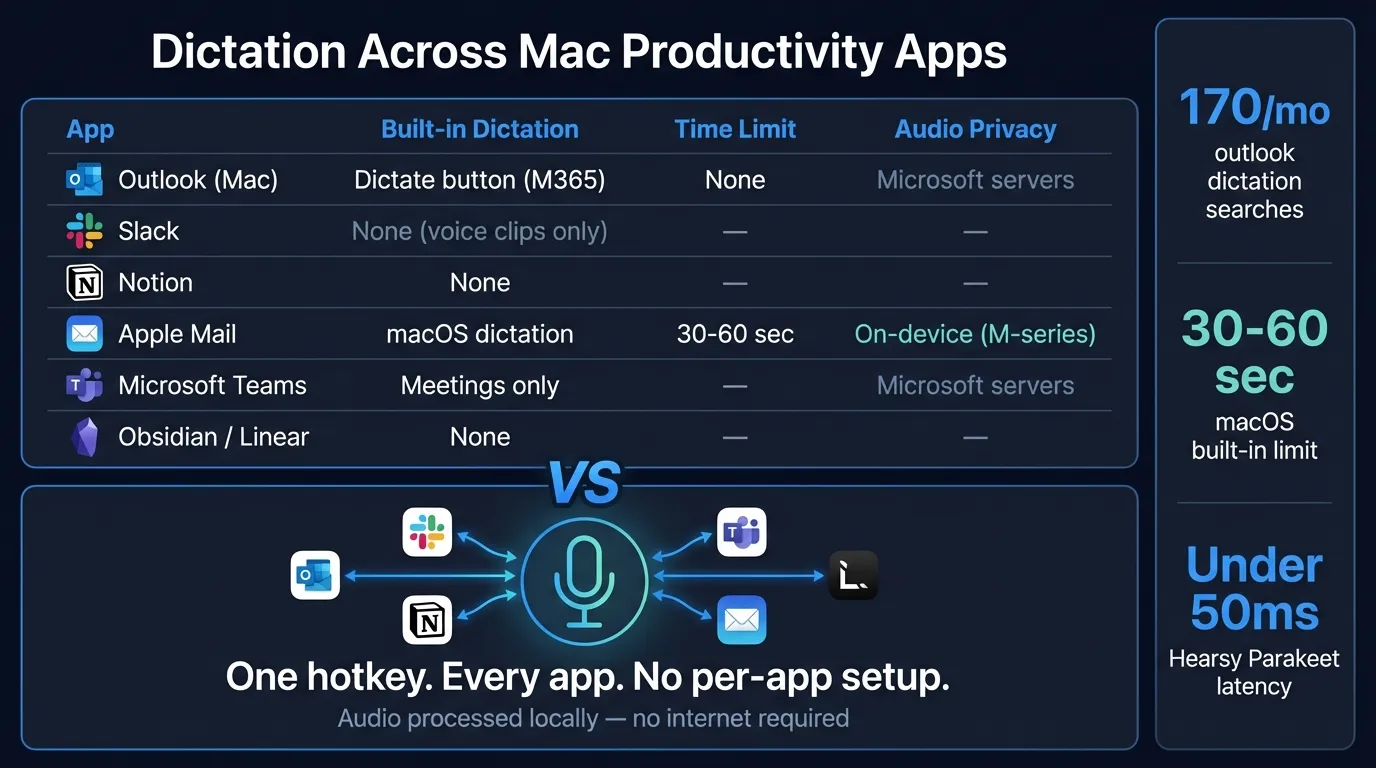
Outlook dictation on Mac: what it does and doesn't do#
Outlook for Mac includes a Dictate button in the compose toolbar — a microphone icon that appears when you're writing an email. Click it, speak, click again to stop. No keyboard shortcut required.
The catch is what happens to your audio. Outlook's Dictate feature sends speech to Microsoft's servers for processing, according to Microsoft's own documentation. It requires an active Microsoft 365 subscription and a working internet connection. If you're offline, the button doesn't work. If you handle sensitive email content — legal matters, health information, client details — your spoken words travel to Microsoft's infrastructure before coming back as text.
There's also a keyboard shortcut problem specific to Mac. Microsoft assigned Option + grave as the Dictate shortcut in Outlook. For anyone who types accented characters (à, è, ù), that shortcut conflicts directly with the grave accent keystroke. According to user reports in Apple Community forums, Microsoft hasn't provided a way to remap it, so typing accented characters in Outlook can accidentally trigger dictation instead.
The other limitation: Outlook's Dictate button works only in Outlook. It does nothing in Slack, Notion, Teams messages, or any other app.
Slack: voice messages are not the same as voice-to-text#
Slack added voice messages in 2022. You can tap a microphone icon to record an audio clip and send it in any channel or DM. Slack auto-transcribes these clips so recipients can read them instead of listening.
That's useful, but it's not dictation. The audio clip is attached to your message — recipients see a player with a transcript below it. You can't speak a message and have it appear as regular typed text in Slack's compose field.
For typing into Slack's message box by voice, your options are macOS built-in dictation or a system-wide app. Click into Slack's compose field, press Control twice to activate macOS dictation, speak, and pause to stop. This works — text appears in the message box — but the 30-60 second continuous limit applies. For a two-sentence Slack message that's manageable. For a longer thread response, the limit interrupts you repeatedly.
One thing worth noting: Slack's compose field occasionally loses cursor focus when macOS dictation is active. If you switch to another window mid-session and back, dictation may have stopped. Keep Slack in focus while speaking to avoid this.
Notion: no native dictation at all#
Notion has no built-in voice input as of early 2026. There's no microphone button, no dictation shortcut, no speech-to-text integration in the Mac desktop app or web app.
The only option that works out of the box is macOS built-in dictation. Click into a Notion text block — page content, a database cell, a comment — activate dictation, speak. The system types at your cursor. The same 30-60 second limit applies, and the same constraint: if you need to dictate a full note, a meeting summary, or a long document, you're restarting every minute.
Continue reading
Dictate into Any App on Mac
Gmail, Slack, Word, Notion — Hearsy works everywhere. Just press a key and speak.
The one-shortcut approach#
A system-wide dictation app replaces per-app limitations with a single hotkey that works in every Mac app. Instead of learning each app's dictation quirks — Outlook's cloud-dependent Dictate button, Slack's lack of any text dictation, Notion's complete absence of voice input — you press one shortcut and speak. The text appears wherever your cursor is.
Apps like Hearsy and SuperWhisper run local speech models directly on your Mac, so there's no cloud dependency, no subscription requirement, and no time limit. Audio never leaves your computer, which matters when you're dictating work emails, internal Slack threads, or confidential project notes in Notion.
The practical benefit isn't just speed — it's consistency. You build one muscle memory instead of three, and every app you use gains the same dictation capability regardless of what the app itself supports.
App-by-app reference#
| App | Built-in dictation | Limit | Audio goes to | System-wide shortcut works |
|---|---|---|---|---|
| Outlook (Mac) | Yes — Dictate button | None reported | Microsoft servers | Yes |
| Slack | No text dictation | — | — | Yes |
| Notion | No | — | — | Yes |
| Microsoft Teams | In meetings only | — | Microsoft servers | Yes |
| Apple Mail | macOS only | 30-60 sec | M-series: on-device | Yes |
| Linear | No | — | — | Yes |
| Obsidian | No | — | — | Yes |
| Pages / Word | Yes (macOS or M365) | 30-60 sec / varies | Varies | Yes |
A system-wide app works in the "Yes" column for every row. The apps with no built-in option gain full dictation. The apps with limited built-in options gain no time limit and consistent behavior.
Per-app tips#
Outlook: Dictate the email body, then use Tab to move to the subject line or recipient field — you don't need to reach for the mouse. AI cleanup templates can turn a spoken draft into a polished, professional email before it's pasted.
Slack: Keep Slack's compose field focused while recording, and draft everything in one take rather than stopping between points. For a detailed walkthrough, see our Slack dictation workflow guide.
Notion: Click into the exact block before starting — cursor position matters in Notion's block-based editor. For longer docs, dictate one section at a time and add formatting after. See our Notion dictation workflow guide for more tips.
Teams messages: The Teams compose field behaves the same as Slack's. System-wide dictation pastes at cursor position. Note that Teams meeting transcription is a separate Microsoft feature and isn't affected by your dictation setup.
Apple Mail: Built-in macOS dictation works in Mail's compose window. For anything longer than a short reply, a system-wide app removes the time-limit friction.
Using AI cleanup for work messages#
Spoken text reads differently than written messages. In Slack especially, where tone carries a lot of weight in remote teams, a spoken draft often sounds more casual or rambling than you intend.
Hearsy's General cleanup template runs transcription through a language model before pasting. For work messages it removes filler words, fixes punctuation, and adds paragraph breaks where you naturally paused. The Email template goes further: it also adjusts tone to professional and restructures run-on sentences.
In practice this is what it looks like for a Slack message:
You speak: "Hey so I just wanted to follow up on the thing from yesterday's standup, I think we were going to figure out who owns the API integration, did that get sorted or is it still unclear?"
After General cleanup: "Quick follow-up from yesterday's standup — has it been decided who owns the API integration, or is that still open?"
The cleanup handles the spoken register. You still decide if the message is right before pressing Enter.
For a full walkthrough of AI-assisted email dictation, see the dictate emails in Gmail guide and the AI dictation overview.
The actual fix for fragmentation#
The deeper issue with per-app dictation isn't the features themselves — it's the cognitive overhead. You learn one shortcut for Outlook, remember that Slack doesn't have dictation so you fall back to Control-twice, remember that Notion has no shortcut at all. Then you switch apps twenty times a day.
A single hotkey everywhere is a one-time setup that eliminates that overhead. Dictate in Outlook, Slack, Notion, and any other app that's currently in focus — same keystroke, same experience.
For detailed setup instructions with each app, see our workflow guides for Slack and Notion. For more on system-wide dictation on Mac, see the best dictation software for Mac guide, the voice to text in Microsoft Word guide, and the Mac dictation overview.
Frequently asked questions#
Can I dictate in Outlook on Mac?#
Yes. Outlook for Mac has a Dictate button in the compose toolbar. It requires a Microsoft 365 subscription and an internet connection — audio is processed by Microsoft's speech service. macOS built-in dictation (Control twice) also works in Outlook and keeps audio on-device on M-series Macs, with a 30-60 second continuous limit.
Does Slack have voice to text for typing messages?#
No. Slack's voice messages are audio clips with auto-generated transcripts — they're not typed text you can edit and send. To dictate into Slack's message input, use macOS built-in dictation or a system-wide app like Hearsy.
How do I dictate in Notion on Mac?#
Notion has no native dictation feature. Click into a Notion text block, press Control twice to activate macOS dictation, speak, and pause to stop. The 30-60 second limit applies. A system-wide app removes that constraint and works with the same hotkey you use in every other app.
What dictation app works across all Mac productivity apps?#
System-wide apps like Hearsy and SuperWhisper work in any Mac app using a single hotkey. They run local speech models on your Mac, require no per-app configuration, and have no time limit. The difference: Hearsy processes audio entirely on-device; some alternatives route audio to cloud servers.
Does Outlook dictation work offline on Mac?#
No. Outlook's built-in Dictate feature requires an internet connection — it sends audio to Microsoft's speech service for processing. For offline dictation in Outlook, use macOS built-in dictation (on-device on M-series Macs, with a 30-60 second limit) or a local dictation app like Hearsy.
Ready to Try Voice Dictation?
Hearsy is free to download. No signup, no credit card. Just install and start dictating.
Download Hearsy for MacmacOS 14+ · Apple Silicon · Free tier available
Related Articles
Dictate Emails in Gmail on Mac: Step-by-Step Guide
11 min read
Voice to Text in Microsoft Word on Mac: 3 Ways That Actually Work
11 min read
Best Voice Recorder Apps for Mac (with Transcription)
8 min read
Best Voice Note-Taking Apps for Mac in 2026
10 min read
Voice Journaling on Mac: Best Apps and Workflows
10 min read