
Dictate Emails in Gmail on Mac: Step-by-Step Guide
How to dictate emails in Gmail on Mac. Covers built-in macOS dictation, Chrome extensions, and system-wide apps — with a step-by-step setup for each method.
Dictation for Gmail on Mac works out of the box with no extra software — but the built-in macOS option stops after 30-60 seconds of continuous speech. For a short reply that's fine. For anything longer, you need a different approach.
Three methods exist: macOS system dictation, a Chrome extension, or a system-wide dictation app. Each has different trade-offs for privacy, flexibility, and how long you can speak at a stretch.
Here's how the three approaches compare at a glance:
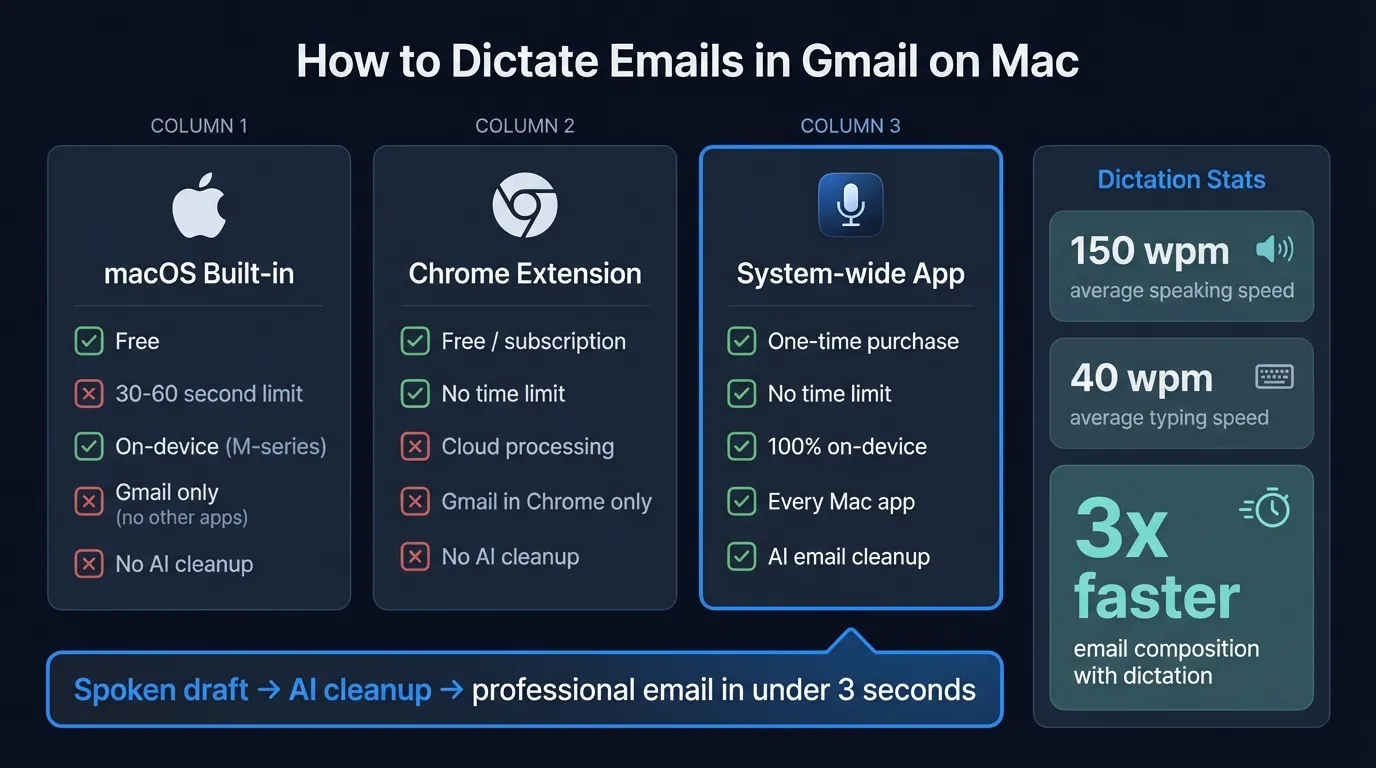
Here's how each works.
Option 1: macOS built-in dictation#
Apple's dictation is already on your Mac. You just need to turn it on.
Setup#
- Open System Settings and click Keyboard in the sidebar
- Scroll to Dictation and toggle it on
- Click Enable when macOS asks to confirm
- On M-series Macs, the system downloads a local speech model — takes 30-60 seconds
That's the entire setup. The default shortcut is pressing Control twice.
How to dictate an email in Gmail#
- Open Gmail in any browser and click Compose
- Click into the message body or the subject line
- Press Control twice to start listening
- Speak your email naturally
- Pause or press the shortcut again to stop
Text appears at your cursor position as you speak. No microphone button, no extension — just the system shortcut you already know.
Changing the shortcut#
Control twice occasionally conflicts with app shortcuts. To change it, go back to System Settings > Keyboard > Dictation and pick from the dropdown. Fn twice is a good alternative if you don't use Fn for anything else.
The constraint#
Built-in dictation stops after roughly 30-60 seconds of continuous speech. This has been consistent behavior across macOS versions, confirmed in Apple Community forums. There's no setting to extend it.
For Gmail specifically, Gmail's compose box uses a rich text div element rather than a standard HTML text input. This works fine most of the time, but text occasionally lands in the wrong spot if you switch windows mid-session. Keep the compose window in focus while speaking.
What macOS dictation gets right#
Apple's built-in option has real strengths worth acknowledging. On M-series Macs, transcription runs entirely on-device — no audio leaves your computer. It requires zero additional software and works immediately after setup. For quick confirmations ("Sounds good, see you Thursday") and one-paragraph replies, the 30-60 second window is more than enough.
The accuracy on Apple Silicon has improved significantly since macOS Ventura. Common English phrases, names, and standard business vocabulary are handled well. And because it's a system-level feature, it works not just in Gmail but in any text field on your Mac.
Best for: Short email replies and quick messages under 100 words. If you're writing anything longer than two paragraphs, you'll hit the time limit repeatedly.
Option 2: Chrome extensions#
Chrome extensions like Voice In and Voicy add a microphone button directly to Gmail's compose window and remove the time limit.
How they work#
- Install the extension from the Chrome Web Store
- A microphone icon appears inside Gmail's compose box
- Click it to start dictating, click again to stop
- No time limit — you can speak for as long as you need
Voice In has a free tier (30 minutes per month) and a $39/year paid plan. Voicy is free with usage limits. Both work on Mac in Chrome.
The trade-offs#
Privacy: Most Chrome dictation extensions process audio through their own servers. Check the privacy policy before installing. If your emails contain confidential information — client details, legal matters, health information — this matters. Some extensions claim on-device processing but actually use the Web Speech API, which may route through Google's servers depending on the browser.
Browser-only: Extensions work only in Chrome. If you access Gmail in Safari or Firefox, you're back to the built-in option. And they do nothing in Outlook, Apple Mail, Slack, or any other app. This creates a fragmented workflow where you dictate differently depending on which app you're in.
Dependency: Your dictation workflow is tied to a browser extension that can break on Chrome updates, stop being maintained, or change pricing. That's a real operational risk for something you use every day. Chrome's Manifest V3 migration has already broken or degraded several dictation extensions.
Accuracy variation: Extension accuracy depends on the speech recognition service they use. Some use Google's Web Speech API (decent accuracy, English-focused), others use their own models (variable quality). None currently offer the latest local AI models that run natively on Apple Silicon.
Best for: Users who primarily access Gmail in Chrome, want no time limit, and don't handle sensitive content in email.
Continue reading
Dictate into Any App on Mac
Gmail, Slack, Word, Notion — Hearsy works everywhere. Just press a key and speak.
Option 3: System-wide dictation apps#
A system-wide dictation app works in every Mac app — Gmail, Outlook, Apple Mail, Slack, Notion, anything — using the same hotkey everywhere. No browser extension required.
This category includes apps like Hearsy, Whisper Transcription, and macOS's own Enhanced Dictation (discontinued in newer versions). The key differentiator is that these apps operate at the OS level, pasting text into whatever window is active.
Hearsy works by running a local speech model on your Mac, then pasting the result via Cmd+V into whatever window is active. Nothing leaves your Mac. It supports two engines: Parakeet (English, under 50ms latency, optimized for Apple Silicon) and Whisper Large V3 (99 languages, 1-2 seconds processing time, better for technical vocabulary).
Already using Hearsy? See our Gmail workflow guide for detailed setup steps and Gmail-specific tips.
Why system-wide apps solve the Gmail problem#
The core limitation of both macOS dictation and Chrome extensions is scope. macOS dictation has the time limit. Chrome extensions are locked to one browser. A system-wide app eliminates both constraints while adding capabilities neither option offers:
- No time limit — dictate for as long as you need
- Any browser — Safari, Chrome, Arc, Firefox, Brave
- Any app — the same hotkey works in Gmail, Outlook, Slack, and everywhere else
- Local processing — audio stays on your Mac (with apps like Hearsy)
- AI cleanup — optional enhancement to turn rough speech into polished email prose
The trade-off#
System-wide apps cost money. Hearsy is a one-time purchase; others may use subscription pricing. If macOS built-in dictation covers your needs, there's no reason to pay for more.
Best for: Anyone who dictates across multiple apps, wants no time limit, and wants audio kept on-device.
Using AI cleanup for email#
Spoken drafts and written emails sound different. When you speak, you use filler words, repeat phrases, and build sentences that work verbally but look loose on screen. A 30-second spoken email often needs cleanup before it's ready to send.
Some system-wide dictation apps offer an AI enhancement step that runs your transcription through a language model before pasting. For example, Hearsy's Email template does three specific things:
- Removes filler words and repeated phrases
- Fixes grammar and punctuation
- Adjusts tone to professional without making it stiff
In practice, this is what that looks like:
You speak: "Hey Sarah, so I wanted to follow up on the, the proposal we sent last week, I think it was Thursday or maybe Wednesday, anyway, we're wondering if you had a chance to look at it and if you have any questions or anything."
After enhancement: "Hi Sarah, following up on the proposal we sent last week. Have you had a chance to review it? Happy to answer any questions."
Same information, roughly 40% of the words, ready to send.
This kind of cleanup is something neither macOS built-in dictation nor Chrome extensions currently offer. It bridges the gap between "dictated text" and "written text" — which is the main reason people hesitate to dictate emails in the first place.
For more on AI-assisted dictation workflows, see the AI dictation guide.
Comparing the three approaches#
| macOS built-in | Chrome extension | System-wide app (e.g. Hearsy) | |
|---|---|---|---|
| Setup time | ~2 minutes | ~3 minutes | ~2 minutes |
| Time limit | 30-60 seconds | None | None |
| Works in Gmail | Yes | Yes | Yes |
| Works in other apps | Yes | No | Yes |
| Works in any browser | Yes | Chrome only | Yes |
| Audio privacy | On-device (M-series) | Cloud (usually) | On-device (varies by app) |
| AI cleanup | No | No | Some apps (e.g. Hearsy) |
| Cost | Free | Free / subscription | One-time or subscription |
The built-in option covers short emails at no cost. Chrome extensions solve the time limit if you stay in Gmail and Chrome. A system-wide app solves everything but costs money.
If you use multiple email clients or want the same dictation shortcut everywhere, the Chrome extension approach creates friction by design. A system-wide app works uniformly.
Which should you choose?#
Start with macOS built-in dictation if you mostly send short replies. It's free, private on Apple Silicon, and requires no extra software. Many people never need more than this.
Try a Chrome extension if you primarily use Gmail in Chrome and frequently write emails longer than a minute of speaking. The time limit removal alone may be worth it, and the free tiers let you test without commitment.
Use a system-wide app if you dictate across multiple apps (email, Slack, docs) and want a single consistent workflow. The privacy and AI cleanup benefits are meaningful if you handle sensitive content or send high-volume professional email.
For a broader comparison of dictation apps on Mac, see the best dictation software for Mac guide.
Tips for faster email dictation#
Draft the structure first. Before you press the hotkey, know the three things your email needs to say. Opening, main point, call to action. Knowing this before you speak reduces rambling and means less cleanup — even with AI enhancement on.
Speak in complete sentences. Speech models have more context when you finish a thought before pausing. Fragments and single words get misrecognized more often than full sentences.
Don't dictate punctuation. You don't need to say "comma" or "period." Pause naturally between sentences and let auto-punctuation handle it. Saying the punctuation out loud makes transcripts harder to read and slows you down.
Keep the compose window in focus. The biggest source of dictation errors in Gmail is accidentally switching windows mid-session. Use a dedicated Gmail tab you don't navigate away from while recording.
Match the tool to the email. A one-line "sounds good, see you then" doesn't need a third-party app — macOS dictation handles it perfectly. A multi-paragraph client response benefits from a system-wide app with AI cleanup. Use the right tool for the right email.
For more on voice typing workflows across Mac apps, see the Mac voice typing guide and the mac dictation guide.
Frequently asked questions#
Can I dictate emails in Gmail on Mac?#
Yes. macOS built-in dictation works in Gmail's compose window without any extensions. Press Control twice, click into the compose body, speak, and pause to stop. The 30-60 second time limit applies — for longer emails, a system-wide dictation app removes the constraint.
What is the best way to dictate emails in Gmail on Mac?#
It depends on your email volume and length. For short replies, built-in macOS dictation is free and fast. For emails longer than two paragraphs, a system-wide app like Hearsy removes the time limit and adds optional AI cleanup to turn a spoken draft into a polished email ready to send. Chrome extensions are a middle ground if you only use Gmail in Chrome.
Does macOS dictation work in Gmail?#
Yes. Click into the Gmail compose window, press Control twice, speak, and stop. Text appears at your cursor. Keep the compose window in focus — switching away mid-session can cause text to land in the wrong place.
Are there Chrome extensions for Gmail dictation on Mac?#
Yes. Voice In and Voicy add a microphone button inside Gmail's compose window with no time limit. Both work on Mac in Chrome. Most Chrome dictation extensions route audio through their servers, so check the privacy policy if you handle confidential email content. Note that these only work in Chrome — not Safari, Firefox, or Arc.
Does Gmail have built-in voice typing on desktop?#
No. Google's voice typing feature only works in Google Docs, not in Gmail on desktop. On mobile, you can use your phone's keyboard dictation, but desktop Gmail has no native speech-to-text. To dictate in Gmail on a Mac, use macOS built-in dictation, a Chrome extension, or a system-wide dictation app.
Ready to Try Voice Dictation?
Hearsy is free to download. No signup, no credit card. Just install and start dictating.
Download Hearsy for MacmacOS 14+ · Apple Silicon · Free tier available
Related Articles
Voice to Text in Microsoft Word on Mac: 3 Ways That Actually Work
11 min read
Best Voice Recorder Apps for Mac (with Transcription)
8 min read
Best Voice Note-Taking Apps for Mac in 2026
10 min read
Voice Journaling on Mac: Best Apps and Workflows
10 min read
Voice Dictation for Writers: Write Faster, Edit Less
14 min read