
Voice Dictation for Developers: Comments, Docs & Slack
How developers use voice dictation for code comments, commit messages, PR descriptions, Slack threads, and documentation — without touching actual syntax.
Most of a developer's day isn't writing code. It's writing about code.
Commit messages, PR descriptions, inline comments, docstrings, Jira tickets, Slack threads, Linear issues, README files, Confluence pages, code review comments — all of it is prose. And prose is where voice dictation pays off.
This isn't about voice coding in the science fiction sense: narrating Python syntax out loud and watching your IDE build functions. That's still awkward, and this post won't pretend otherwise. It's about the significant portion of developer work that isn't syntax at all, where speaking is genuinely faster than typing and produces better output.
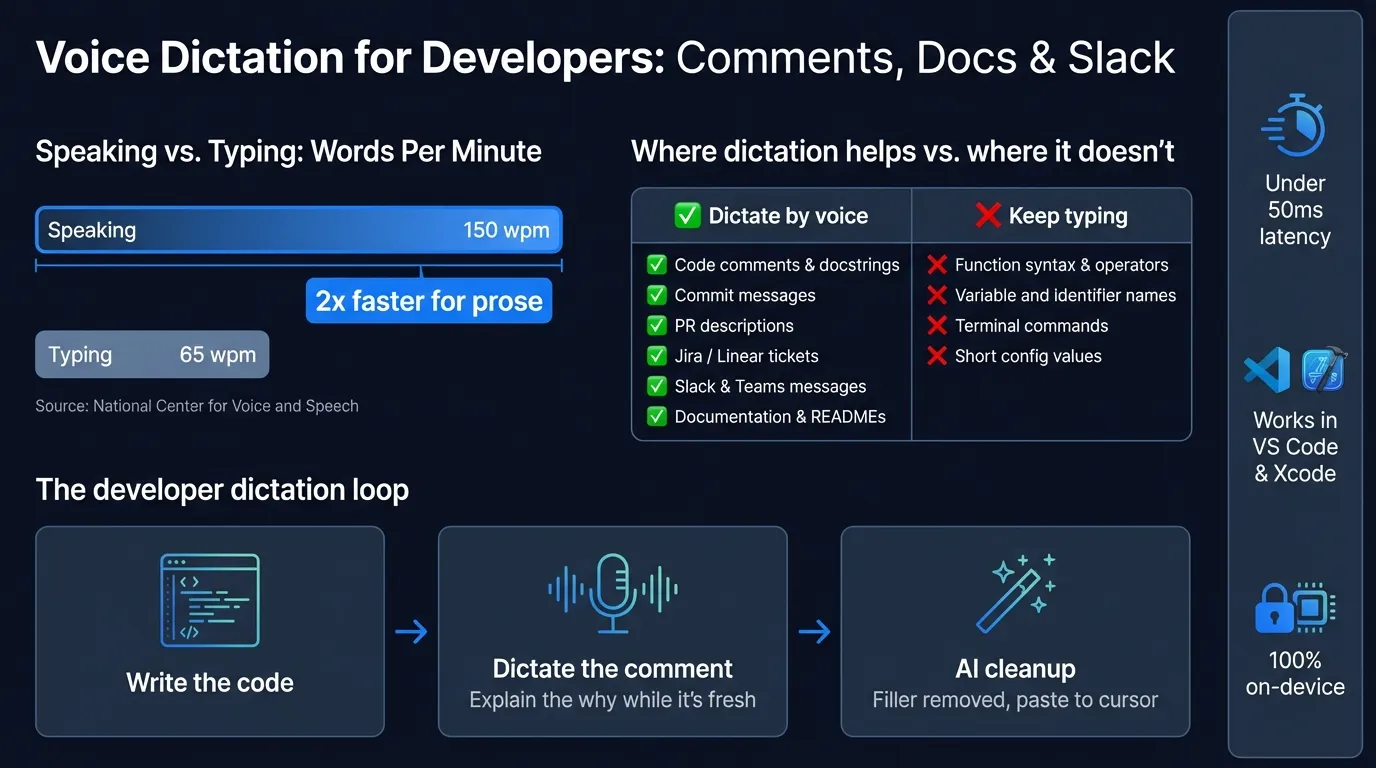
Here's a breakdown of where voice dictation fits into a developer's daily workflow:
Why dictation makes sense for developers#
The average adult speaks at around 150 words per minute, according to the National Center for Voice and Speech. Developer typing speed tends to run 50-80 wpm depending on experience. That's roughly a 2-to-1 gap for pure prose.
But the typing speed comparison undersells it. Developers don't type prose at their full typing speed. Writing a commit message means stopping what you're doing, switching context, and spending 30-90 seconds composing a sentence that nobody will read carefully anyway. That context switch has real cost. Dictating it in 10 seconds does too, but the cognitive overhead is lower — you speak first, then switch back, rather than spending several minutes in "writing mode."
The same math applies to code comments, PR descriptions, and Slack messages. These are constant low-level interruptions to deep work. Dictation doesn't eliminate them, but it compresses the time and mental load they consume.
What dictation is good for in a dev workflow#
Inline comments and docstrings#
This is where dictation has the clearest advantage. A good inline comment explains why a piece of code does something, not what it does. That explanation is almost always easier to say out loud than to type — you're narrating your own reasoning.
Position your cursor in the comment block (or wherever your comment will go), trigger your dictation shortcut, and speak:
"This regex strips ANSI escape codes before writing to the log file — the terminal colorization from the subprocess output was corrupting the log entries in production."
That's a 25-word comment that would take most developers 30-40 seconds to type. Spoken, it's 6-8 seconds. The content is also typically better when spoken: you describe the reasoning as you actually think it rather than compressing it into a clipped phrase.
Docstrings work the same way. Describing what a function does, what its parameters expect, and what edge cases matter is natural in speech. The structure might need a cleanup pass, but the content comes out complete.
Commit messages#
Commit messages are where most developers take the most shortcuts. Under time pressure, "fix bug" and "update stuff" happen. Dictation makes it easy enough to write a real commit message that the shortcuts stop feeling worth it.
Speak the summary line and the body in one take:
"Fix null pointer in user session expiry handler. The session manager was accessing the user object before checking whether the session was still valid — happened when the token expired between request start and the auth check."
A system-wide dictation app pastes that directly into whatever text field is in focus — the terminal where you're running git commit, the GitHub web UI, a desktop Git client.
PR descriptions#
PR descriptions benefit from dictation more than almost any other developer writing task. A thorough PR description that explains the problem, the approach, testing steps, and known limitations is rarely written under time pressure. Most developers write a single sentence and ship it.
Dictating a PR description feels different: you're explaining the change to a colleague, not composing a document. Speaking it out loud produces more complete explanations of the reasoning, naturally. The first-draft quality of a dictated PR description typically beats a typed one of the same time investment.
Jira, Linear, and GitHub issues#
Ticket writing is prose. Bug report reproduction steps, feature requirement descriptions, acceptance criteria — all of it transfers cleanly to dictation. Writing tickets by voice while walking through a problem verbally often produces better-structured requirements than writing them silently.
Slack, Teams, and email#
Developer messaging is a significant time sink. Technical Slack threads that span multiple paragraphs — explaining a production incident, proposing a design change, summarizing a decision — are slow to write by hand and often get abbreviated into something ambiguous.
Dictating a Slack message removes the friction of the blank text box. Speak the full explanation, paste it in, read it back, trim anything redundant. The process is faster and the result is more complete.
Documentation and wikis#
README files, architecture decision records, Confluence or Notion pages, runbooks — documentation is the developer task that gets skipped most often because it's the most time-consuming relative to its perceived urgency.
Dictation lowers the cost of a documentation pass significantly. Speaking through a system's behavior and edge cases is something developers do informally all the time in meetings and code reviews. Recording that explanation verbatim and cleaning it up afterward produces documentation faster than composing from scratch.
AI prompts in Cursor, Claude, and Copilot Chat#
AI-assisted coding tools require prompt-writing: describing a problem, specifying constraints, explaining what you want. For longer prompts, dictation is faster. Speak the context and requirements, paste into Cursor's chat or Claude's input, then review and refine.
This is one of the fastest-growing uses of dictation in developer workflows. Multi-sentence prompts to an AI coding assistant are quicker to dictate than type, and the conversational phrasing that comes naturally from speech often produces better AI responses than terse typed prompts.
Continue reading
Dictate into Any App on Mac
Gmail, Slack, Word, Notion — Hearsy works everywhere. Just press a key and speak.
Setup on Mac#
macOS built-in dictation#
Apple's dictation is already on your Mac and works in any text field, including VS Code, Xcode, iTerm, browser-based tools like GitHub and Jira.
Turn it on: System Settings > Keyboard > Dictation > On. The default trigger is pressing Control twice.
The constraint for developers: built-in dictation stops listening after roughly 30-60 seconds of continuous speech. For a quick Slack message this is fine. For a commit message body, a PR description, or documentation, you'll hit the limit mid-sentence and have to restart. This makes it unsuitable for anything longer than two or three sentences in one take.
System-wide apps#
Hearsy and similar apps run a local speech model (Whisper or Parakeet) that operates without a time limit. One hotkey triggers dictation, you speak, transcription pastes wherever your cursor is. It works in VS Code, Xcode, JetBrains IDEs, terminals, browsers, Slack desktop, Notion — any text field on macOS.
Hearsy's Parakeet engine transcribes in under 50ms on Apple Silicon. Whisper Large V3 takes 1-2 seconds but handles 99 languages and performs better on uncommon technical vocabulary. Both run entirely on your Mac with no network traffic.
Using AI templates for developer output#
Raw dictation pastes whatever you said verbatim. For most developer tasks, a one-pass cleanup improves the result significantly:
- Filler words removed ("so," "basically," "you know")
- Sentence fragments joined
- Punctuation added
- Repeated phrases collapsed
Hearsy includes an optional AI enhancement step that runs the raw transcript through a local or cloud language model before pasting. The enhancement takes 1-2 seconds and can be enabled or disabled per session.
For code comments specifically, a Developer template is useful: it takes spoken reasoning and reformats it to match comment conventions (proper capitalization, concise phrasing, no filler). You speak naturally, the enhancement output is already close to what you'd type by hand.
For PR descriptions or documentation drafts, the Professional template produces cleaner structured prose. For Slack and Teams, no enhancement is usually needed — conversational language is appropriate there.
What doesn't work well#
Actual syntax dictation. Narrating Python, JavaScript, or any other code syntax out loud is awkward. Special characters (brackets, operators, indentation) require either phonetic spellings or workarounds, and the accuracy degrades on identifiers and variable names. No one ships production code entirely by voice in 2026. This is still typed.
Terminal commands. Shell commands have enough flags, pipes, and special characters that dictation introduces more errors than it saves time. Type them.
Short form-factor fields. Branch names, variable names, function signatures, configuration keys — these are typically under 10 words, often with no natural spaces, and typed faster than dictated.
High-noise environments. Offices with background conversation, open-plan floors, coffee shops — background noise increases transcription errors measurably. Dictation is most effective in quiet environments or with a close-talking headset.
Dictation methods compared#
| macOS built-in | Hearsy | |
|---|---|---|
| Works in VS Code, JetBrains, iTerm | Yes | Yes |
| Time limit | 30-60 seconds | None |
| Transcription model | Apple (on-device, M-series) | Parakeet or Whisper (on-device) |
| AI cleanup for comments/docs | No | Optional |
| Audio stays on device | M-series: yes | Yes |
| Cost | Free | One-time purchase |
For very short tasks — a one-sentence commit message, a quick Slack reply — macOS built-in dictation is free and works well. For writing longer code comments, PR descriptions, Jira tickets, or documentation, the time limit becomes a genuine constraint that interrupts the flow that makes dictation useful.
Practical workflow tips#
Keep your editor in focus. Dictation pastes to wherever the cursor is. If you switch windows mid-session, transcription goes to the wrong place. Speak first, then switch context.
Dictate while the thought is live. The best use of dictation in a developer workflow is capturing an explanation immediately after writing a piece of code — while the reasoning is still fresh. Turning around and dictating an inline comment 30 seconds after writing the code produces better comments than writing the comment an hour later.
Say "new paragraph" or "new line" for structure. For multi-paragraph documentation, verbal paragraph markers make the transcript easier to read and edit. Most speech models convert "new paragraph" to an actual paragraph break.
Use AI enhancement for documentation, skip it for Slack. The raw transcript is usually good enough for casual messages. For anything client-facing, committed to the repo, or wiki documentation, the enhancement pass is worth the extra second.
For related guides on using dictation in specific apps, see dictate emails in Gmail on Mac and voice to text in Microsoft Word on Mac.
For a broader overview of Mac dictation options, see the Mac dictation guide and best dictation software for Mac.
Frequently asked questions#
Can developers use voice dictation for coding?#
Yes, for the prose portions of development work: code comments, docstrings, commit messages, PR descriptions, tickets, Slack messages, and documentation. Actual syntax — brackets, operators, indentation, identifiers — is still typed. The prose tasks make up a larger fraction of development time than most developers realize until they start tracking it.
What is the best dictation app for developers on Mac?#
Hearsy works system-wide in every dev tool — VS Code, Xcode, JetBrains IDEs, iTerm, GitHub, Jira, Slack, Notion — with on-device processing and no subscription. macOS built-in dictation works in the same places but stops after 30-60 seconds, which is too short for commit messages, PR descriptions, or documentation.
How do I dictate code comments on Mac?#
Position your cursor in the comment block, trigger your dictation shortcut (Control twice for built-in, or your configured hotkey for a third-party app), and speak the explanation. The transcription pastes at cursor position. A system-wide app like Hearsy works inside VS Code, Xcode, and any other IDE without additional configuration.
Does voice dictation work inside VS Code?#
Yes. System-wide dictation apps on Mac work in any text field, including VS Code's editor, terminal panel, and chat sidebar. Built-in macOS dictation also works in VS Code with the same 30-60 second time limit.
Can I dictate commit messages by voice?#
Yes. Commit messages are prose — a summary line and optional body explaining what changed and why. Dictating them is faster than typing for anything more than a one-liner. Speak your message, paste it into the commit text field (in Terminal, GitHub Desktop, a web UI, or anywhere else), and review it. The AI cleanup option removes filler words if you want a cleaner first draft.
Ready to Try Voice Dictation?
Hearsy is free to download. No signup, no credit card. Just install and start dictating.
Download Hearsy for MacmacOS 14+ · Apple Silicon · Free tier available
Related Articles
Dictate Emails in Gmail on Mac: Step-by-Step Guide
11 min read
Voice to Text in Microsoft Word on Mac: 3 Ways That Actually Work
11 min read
Best Voice Recorder Apps for Mac (with Transcription)
8 min read
Best Voice Note-Taking Apps for Mac in 2026
10 min read
Voice Journaling on Mac: Best Apps and Workflows
10 min read