
How to Dictate Email in Outlook on Mac (Built-in + Better Options)
Step-by-step guide to Outlook's built-in dictation on Mac — how to enable it, keyboard shortcuts, limitations, and when to use a system-wide alternative like Hearsy.
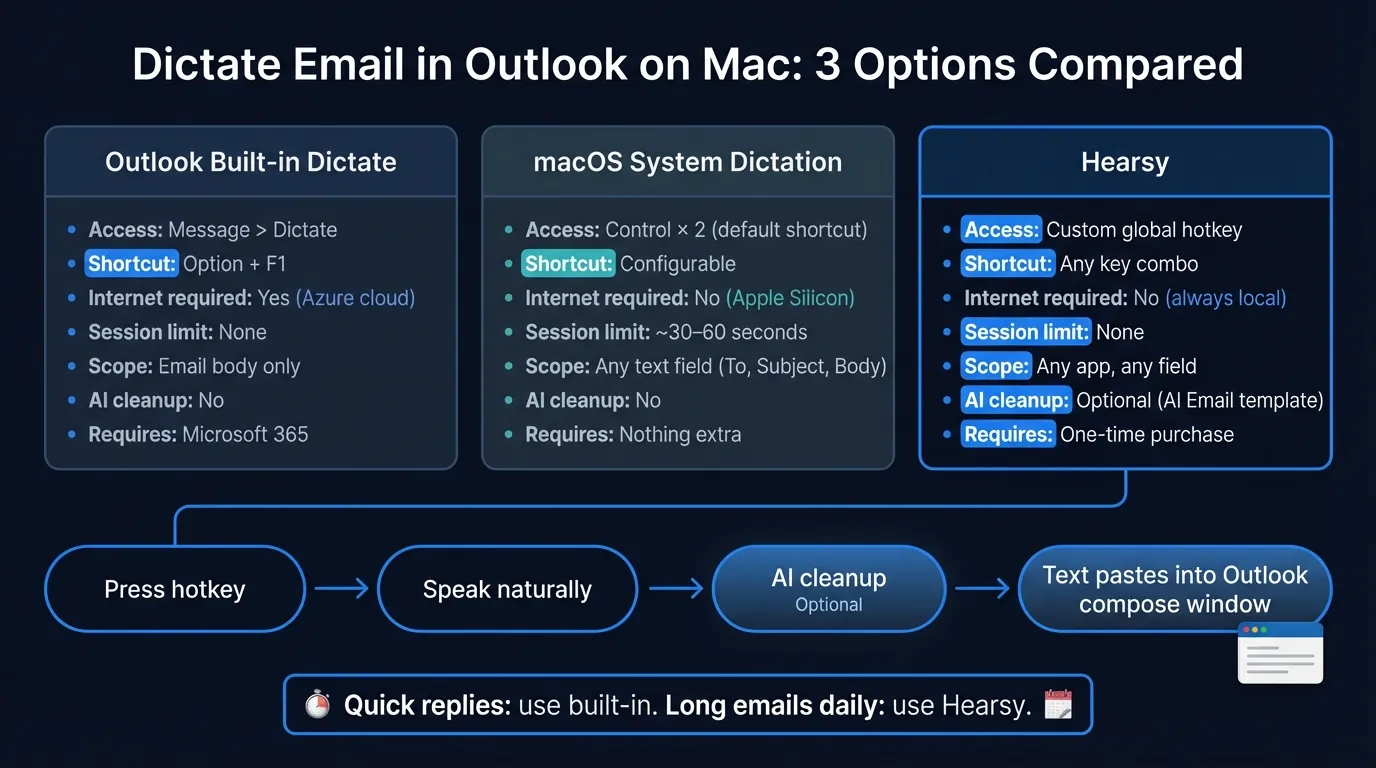
Outlook for Mac has a built-in Dictate button — but it requires an internet connection, a Microsoft 365 account, and a version of Outlook that's still rolling out to users. If you're looking for voice-to-text in Outlook on Mac, you have three options: Outlook's own dictation, macOS system dictation, or a system-wide app like Hearsy.
This guide covers all three: how to set each one up, what each does well, and where each falls short.
Option 1: Outlook's built-in Dictate feature#
How to enable it#
Outlook's built-in dictation lives inside the email compose window. To use it:
- Open Outlook for Mac
- Click New Email or open a reply
- Click Message in the top menu bar
- Click Dictate — a microphone panel appears at the bottom of your compose window
- Allow microphone access when macOS prompts you
- Click the microphone to start dictating
Keyboard shortcut: Option + F1. On laptops where function keys are mapped to media controls, use fn + Option + F1.
Requirements#
- Office for Mac 16.40 or later (check by going to Help > Check for Updates)
- Microsoft 365 subscription — active, signed-in account
- Internet connection — audio is processed by Microsoft Azure Speech Services
What it does#
The Dictate panel sits at the bottom of your email compose window with a live microphone indicator. Speak naturally and text appears in the message body at your cursor position. It supports over 50 languages. You can switch languages by clicking the language selector in the panel.
You can say punctuation aloud — "period," "comma," "question mark" — though the feature also includes auto-punctuation in supported languages, which reduces how often you need to say it manually.
Limitations#
Internet required. Outlook's dictation runs on Microsoft's cloud — your audio is sent to Azure Speech Services for processing. It won't work in airplane mode, on a spotty connection, or in environments where you'd rather not send audio to a remote server.
Still rolling out. The Dictate button isn't universally available yet. If you don't see it under the Message menu, check your Office version (Help > Check for Updates) or wait for the feature to reach your account. Some users see it; others don't.
Compose window only. The Dictate button appears while composing or replying. You can't use it to dictate into the To, Cc, Subject, or search fields — it targets the message body specifically.
No AI cleanup. Outlook's built-in dictation transcribes your speech literally. Filler words, restarts, and run-on sentences come through verbatim. If you dictate "uh I wanted to follow up on uh the meeting from yesterday," that's what appears in your email.
Option 2: macOS system dictation in Outlook#
If Outlook's Dictate button isn't available to you — or you want something that works offline — macOS built-in dictation is a solid fallback.
How to enable it#
- Open System Settings
- Click Keyboard in the sidebar
- Scroll to Dictation and toggle it on
- Click Enable in the confirmation dialog
- Optionally enable Auto-punctuation
The default shortcut is pressing Control twice. You can change it to Fn or Command in the same settings panel.
How to use it in Outlook#
Click inside your Outlook compose window to place your cursor in the message body. Press Control twice (or your configured shortcut). Speak. Text appears in the active field. Press the shortcut again or click the Done button to stop.
What it does well#
Works everywhere, including Outlook. macOS dictation types into whichever text field is active — the message body, the subject line, the To field. If there's a cursor, it works. Outlook's built-in feature is limited to the message body. macOS dictation isn't.
Offline on Apple Silicon. On M1, M2, M3, and M4 Macs, macOS dictation runs fully on the Neural Engine — no internet required, no audio sent to Apple's servers. On Intel Macs, audio goes to Apple's servers, so the offline benefit applies only to Apple Silicon.
Free and always there. No subscription, no rollout dependency.
Limitations#
Session timeout (~30–60 seconds). macOS built-in dictation has a session limit. After roughly half a minute to a minute of continuous speech — or a noticeable pause — it stops automatically. For drafting a short reply, this is fine. For composing a longer email, you'll hit the limit mid-thought.
No AI text cleanup. Like Outlook's feature, macOS dictation transcribes literally. Spoken filler and speech patterns land in your email as-is.
No history. Once the text is in the email, it's gone from the dictation system. No way to recover what you said or review past dictation.
Type at the Speed of Speech
Hearsy turns your voice into text instantly — right on your Mac, with zero cloud dependency.
Option 3: Hearsy (system-wide, with AI cleanup)#
Both of the above options are best for short dictation with no cleanup requirements. If you dictate email regularly — multiple times a day, longer messages — a purpose-built tool is worth the difference.
How Hearsy works in Outlook#
Hearsy sits in the Mac menu bar. Press its global hotkey (any combination you configure), speak, release. Hearsy transcribes locally using Parakeet (~0.2 seconds) or Whisper (99+ languages), optionally runs the transcript through an AI model, and pastes the result into whatever window is active.
In Outlook, that means: cursor in the compose window, press the hotkey, speak your email, release. The email text — already cleaned up if you're using the AI Email template — lands in the compose window. No panel to open, no microphone button to find, no session timer running in the background.
AI Email template#
Hearsy's AI Email template processes the raw transcript before pasting. When you dictate something like "hey uh reach out to see if they got the proposal from last week maybe thursday works for a call," the template can produce:
Hi [Name],
Following up to see if you received the proposal from last week. Would Thursday work for a quick call?
Best, [Your name]
The template is optional and configurable — you can choose to paste the raw transcript, or use any of Hearsy's other templates (Clean Up, Bullet Points, etc.) depending on the message.
Unlimited sessions, full offline capability#
Hearsy records until you stop. No timeout. And since processing uses a local speech model, it works offline on any Mac — not just Apple Silicon.
The practical difference#
| Outlook Dictate | macOS Dictation | Hearsy | |
|---|---|---|---|
| Requires internet | Yes | No (Apple Silicon) | No |
| Microsoft 365 required | Yes | No | No |
| Session limit | No | ~30–60 sec | None |
| Works in Subject / To fields | No | Yes | Yes |
| Works in other Mac apps | No | Yes | Yes |
| AI email cleanup | No | No | Optional |
| Custom hotkey | Option+F1 only | Limited options | Any combination |
| Price | Included (M365) | Free | One-time purchase |
Which option to use#
Use Outlook's built-in Dictate if: you have Microsoft 365, have a stable internet connection, and want dictation scoped to the email body with no extra setup.
Use macOS dictation if: you don't have the Outlook Dictate button yet, you're on Apple Silicon and want offline capability, or you need to dictate into fields outside the message body (To, Subject, etc.).
Use Hearsy if: you dictate email regularly, want AI to clean up raw speech into polished text, need to dictate across apps beyond Outlook, or want unlimited session length without babysitting a timer.
Most people who dictate email consistently end up using a system-wide tool — not because the built-in options are bad, but because the workflow is smoother when a single hotkey works everywhere.
Tips for dictating email on Mac#
Speak in complete thoughts, not words. Dictation models perform better with complete sentences than with word-by-word hesitation. If you know what you want to say, say the whole thought before pausing.
Dictate in quiet environments. All three options perform better without background noise. A quiet room or headset makes a visible difference in transcription accuracy, especially for proper nouns and technical terms.
Use the subject line last. It's easier to compose the body first — when your thinking is fresh — and fill in the subject at the end. With macOS dictation or Hearsy, you can click into the Subject field and dictate there too.
For longer emails, draft in sections. Dictate a paragraph, stop, check it, dictate the next. This is faster than trying to dictate a 300-word email in one take and then correcting a dozen errors.
If Outlook's Dictate button is missing: go to Help > Check for Updates to make sure you're on the latest version of Office. If it's still missing, it hasn't rolled out to your account yet — use macOS dictation in the meantime.
Frequently asked questions#
Does Outlook for Mac have a built-in dictation feature?#
Yes. Outlook for Mac includes a Dictate button under Message > Dictate while composing an email. It requires Microsoft 365 and an internet connection. Audio is processed by Microsoft Azure Speech Services.
How do I enable dictation in Outlook on Mac?#
Open Outlook, start a new email or reply, click Message > Dictate. If it's missing, update to Office for Mac 16.40 or later. Allow microphone access when prompted.
What is the keyboard shortcut for Outlook dictation?#
Option + F1 (or fn + Option + F1 on laptops with media function keys).
Does Outlook dictation work offline?#
No. Outlook's built-in feature requires internet. For offline dictation in Outlook, use macOS system dictation (works offline on Apple Silicon) or Hearsy (works offline on all Macs).
Can I use macOS dictation in Outlook?#
Yes. macOS system dictation (Control × 2 by default) works in any text field on Mac, including Outlook's compose window, Subject line, and To field.
Ready to Try Voice Dictation?
Hearsy is free to download. No signup, no credit card. Just install and start dictating.
Download Hearsy for MacmacOS 14+ · Apple Silicon · Free tier available
Related Articles
Voice Typing on Mac: How to Type with Your Voice in Any App
9 min read
Voice Typing in Google Docs: The Complete 2026 Guide
10 min read
How to Set Up Voice Recognition on Mac in Under 2 Minutes
8 min read
Voice Control on Mac: Complete Guide to Hands-Free Mac Usage
12 min read
Speech to Text on MacBook: M-Series Performance Guide
8 min read