
Voice Typing in Google Docs: The Complete 2026 Guide
Everything you need to use voice typing in Google Docs — how to enable it, keyboard shortcuts, voice commands, troubleshooting fixes, and when a system-wide alternative is a better fit.
Google Docs has built-in voice typing that's free, requires no installation, and supports over 100 languages. For a lot of people, it's the first voice-to-text tool they try — and for casual use, it works well enough.
This guide is a deep-dive into the built-in feature: how to set it up, every voice command for formatting and editing, what breaks it and how to fix it, and where it falls short.
Looking for a comparison of all speech-to-text methods that work with Google Docs (including macOS dictation and third-party apps)? See Speech to Text in Google Docs: Built-in vs Alternatives.
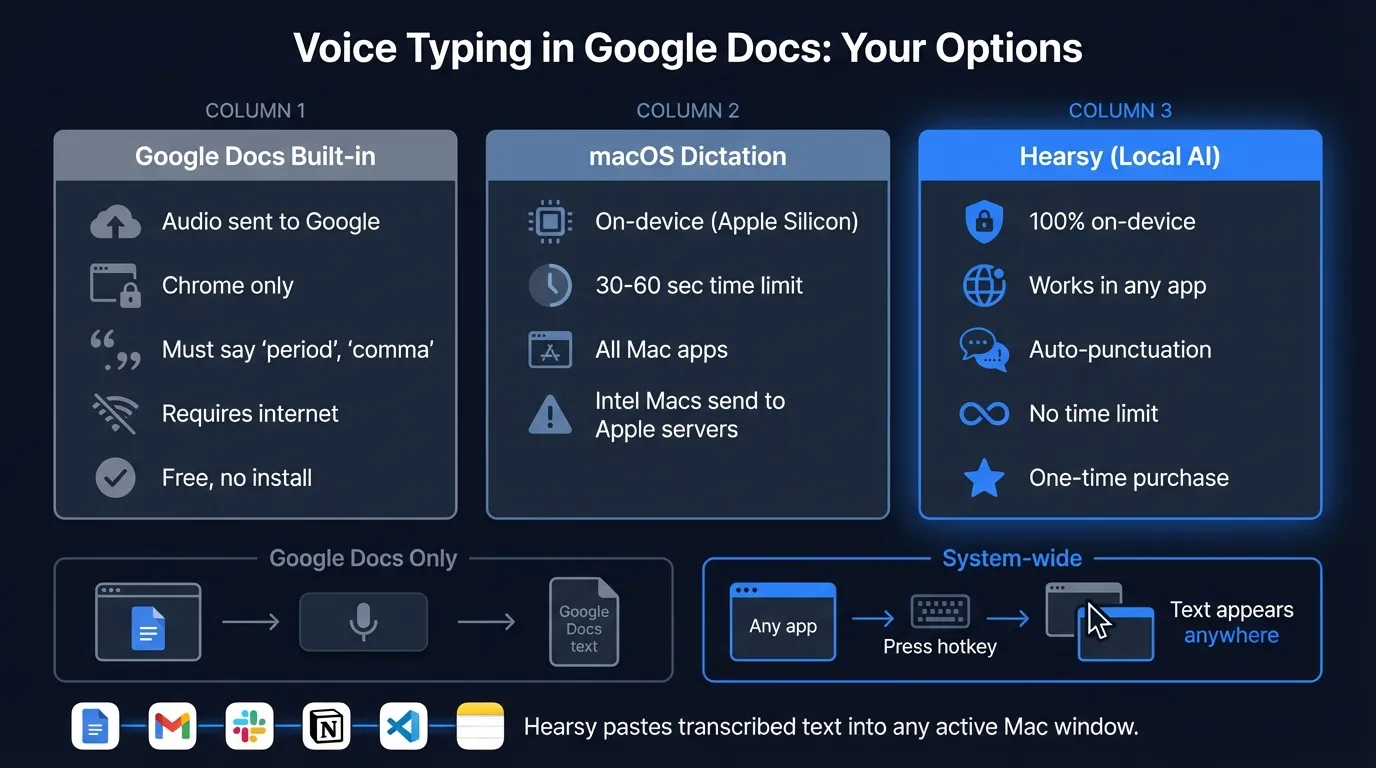
Here's a quick look at what Google Docs voice typing can and can't do:
How to enable voice typing in Google Docs#
You need to be in Chrome or another Chromium-based browser (Edge works too). Firefox is not supported. Neither are the Google Docs mobile apps.
- Open your document in Chrome
- Click Tools in the menu bar
- Click Voice typing — a microphone panel appears on the left side of your document
- Click the microphone icon to start listening
- When prompted, click Allow to give Chrome access to your microphone
- Speak clearly — text appears at your cursor position as you talk
- Click the microphone again to stop
Keyboard shortcut#
Mac: Cmd + Shift + S Windows: Ctrl + Shift + S
The panel toggles open and closed with this shortcut, but you still need to click the microphone to actually start dictation.
First-time setup: microphone permission#
Chrome asks for microphone access the first time. If you accidentally clicked Block, fix it at: chrome://settings/content/microphone — remove the Google Docs entry so it prompts again, or switch it to Allow.
On Mac, also check System Settings > Privacy & Security > Microphone and confirm Chrome is listed and enabled.
Voice commands#
Voice typing in Google Docs isn't just about inserting text — you can control punctuation, formatting, and editing entirely by voice. Voice commands only work when your document and account language are both set to English.
Punctuation#
Google Docs does not add punctuation automatically. You have to say it:
| Say this | Gets inserted |
|---|---|
| "period" | . |
| "comma" | , |
| "question mark" | ? |
| "exclamation point" | ! |
| "new paragraph" | (starts new paragraph) |
| "new line" | line break |
| "colon" | : |
| "semicolon" | ; |
| "open quote" / "close quote" | " " |
| "dash" | — |
This is the biggest adjustment coming from auto-punctuating tools — you either say every punctuation mark, or you go back and edit manually.
Editing and selection#
| Say this | What it does |
|---|---|
| "select [word]" | Selects that word in your text |
| "select paragraph" | Selects the current paragraph |
| "select all" | Selects all text in the document |
| "delete [word]" | Deletes that word from your text |
| "delete last word" | Removes the most recent word |
| "undo" | Undoes the last action |
Formatting#
| Say this | What it does |
|---|---|
| "bold that" | Bolds the selected text |
| "italicize that" | Italicizes the selected text |
| "underline that" | Underlines the selected text |
| "apply heading 1" | Applies Heading 1 style |
| "apply normal text" | Resets to Normal text style |
| "insert table [rows] by [columns]" | Inserts a table |
Navigation#
| Say this | What it does |
|---|---|
| "go to end of line" | Moves cursor to end of line |
| "go to beginning of document" | Moves cursor to start |
| "scroll down" | Scrolls the document view |
To see the complete list, say "voice commands list" while dictating — Docs will open the help article with every supported command.
Supported languages#
Google Docs voice typing supports over 100 languages — Arabic, Chinese, French, German, Japanese, Spanish, Portuguese, and many more. Change the language in the voice typing panel: click the dropdown that shows your current language and select a new one.
The catch: voice commands (everything in the tables above) only work in English. If you're dictating in French or Spanish, you're inserting text only — no voice-based formatting or editing.
Type at the Speed of Speech
Hearsy turns your voice into text instantly — right on your Mac, with zero cloud dependency.
Where voice typing works (and doesn't)#
The voice typing panel appears only when you're editing the main body of a document. It does not appear in:
- Headers and footers
- Comments
- Footnotes
- Drawing canvases
- Cells in Google Sheets (voice typing is Docs-only)
Within the document body, it works well for continuous prose — articles, reports, meeting notes, long emails drafted in Docs before pasting.
Voice typing not working: how to fix it#
"This feature isn't available in your browser"#
You're not on Chrome or Edge. Firefox and Safari don't support Google Docs voice typing. Switch to Chrome.
Microphone icon is grayed out or missing#
Usually a permissions issue. Check:
- Chrome's site permissions: Go to chrome://settings/content/microphone, find docs.google.com, confirm it's set to Allow
- System microphone permissions on Mac: System Settings > Privacy & Security > Microphone — Chrome must be listed and enabled
- Another app using the mic: On Mac, check Activity Monitor or close video call apps (Zoom, Teams) that hold the microphone
Voice typing starts but nothing appears#
- Confirm you're clicking inside the document body before starting (not in a sidebar or header)
- Speak at normal volume and speed — whispering or rushing both hurt recognition
- Try a quiet environment — background noise causes missed words and dropped audio
- Check that your input device is the correct microphone in System Settings > Sound > Input
Text appears but is garbled#
Google Docs voice typing is cloud-based, so audio quality matters more than with local models. Fixes:
- Move closer to your microphone
- Use a headset instead of built-in laptop mic
- Reduce background noise
- Speak in complete sentences rather than fragments — the model uses context to resolve ambiguity
Voice commands aren't working#
Commands only work when your document language is set to English. Check the language dropdown in the voice typing panel — it needs to be an English variant.
Browser cache and extension conflicts#
If nothing above helps: clear Chrome's cache (Settings > Clear browsing data > Cached images and files), try in a Chrome incognito window (which disables extensions), and confirm your browser is up to date.
The limits of Google Docs voice typing#
Understanding the boundaries helps you decide whether the built-in tool is enough or whether you need something else.
Chrome-only, Docs-only#
Google's voice typing is locked to the Google Docs web app in Chrome. It does not work in Gmail, Google Sheets, Slack, Notion, VS Code, or any native macOS application. If you dictate across multiple apps, you need a system-wide tool.
No auto-punctuation#
Every period, comma, and question mark must be spoken. This adds cognitive overhead — you track punctuation in parallel with forming sentences. Auto-punctuating tools remove this burden entirely.
Cloud-based processing#
Your audio is sent to Google's servers. For most personal use this is fine; for sensitive or regulated content, it may not be.
Requires internet#
No offline mode. If your connection drops, voice typing stops.
No AI post-processing#
Filler words, false starts, and repeated phrases appear verbatim. There is no cleanup layer to polish your transcript into clean prose.
For a detailed comparison of alternatives that address these limitations — including macOS dictation, SuperWhisper, and Hearsy — see Speech to Text in Google Docs: Built-in vs Alternatives.
When to consider a system-wide alternative#
If you find yourself dictating outside Google Docs — into Gmail, Slack, Notion, or any native app — a system-wide dictation tool eliminates the need to switch methods per application. These apps record your speech, run a local speech model, and paste the result into whatever window is active.
Hearsy is one such tool. It works in any Mac app (including Google Docs in any browser), transcribes on-device with sub-50ms latency, and optionally cleans up your text with AI. If you want to try it with Google Docs specifically, see our Hearsy + Google Docs setup guide.
Tips for better results#
Say punctuation in the flow of speech. Rather than stopping after each sentence to say "period," try to work it into your rhythm: "The meeting ran long period we'll reschedule for Friday period." After a few sessions it becomes less disruptive.
Use voice commands for corrections instead of mouse. Saying "delete last word" or "undo" is faster than reaching for the mouse mid-dictation. Learning a handful of editing commands — select, delete, undo — keeps your hands off the keyboard.
Keep your cursor in the document body. Voice typing deactivates if focus leaves the document. Don't click into a browser tab, open another window, or switch apps while the microphone is active.
Use a headset for long sessions. Built-in laptop mics work for short dictation. For longer documents, a headset mic at consistent distance from your mouth produces more consistent accuracy and reduces fatigue.
Draft, then edit. Don't stop to correct every word. Dictate a full section, then go back and clean up. Stopping constantly to fix individual words disrupts your flow more than the errors themselves.
Frequently asked questions#
How do I enable voice typing in Google Docs?#
Open your document in Chrome, click Tools > Voice typing, and click the microphone icon. The keyboard shortcut is Cmd+Shift+S on Mac or Ctrl+Shift+S on Windows. Allow microphone access when prompted.
Does Google Docs voice typing work on Mac?#
Yes, inside the Chrome browser. Open your document, go to Tools > Voice typing, click the microphone. It doesn't work in Firefox and isn't available in Google's iOS or Android apps.
Why is Google Docs voice typing not working?#
The most common reasons: you're not using Chrome or Edge, Chrome is blocked from your microphone, another app is using the microphone, or your browser is outdated. Check Chrome's mic permissions at chrome://settings/content/microphone and verify Chrome has microphone access in macOS System Settings > Privacy & Security > Microphone.
What voice commands work in Google Docs?#
Punctuation (say "period", "comma", "question mark"), editing ("delete last word", "undo", "select [word]"), navigation ("new paragraph", "go to end of line"), and formatting ("bold that", "italicize that"). Commands only work when your document language is English. Say "voice commands list" while dictating for the full reference.
Is Google Docs voice typing private?#
No — audio is sent to Google's servers for processing. If you need fully on-device transcription, use a local app like Hearsy instead.
Can I use voice typing in Google Docs on iPhone or Android?#
Tools > Voice typing is desktop Chrome only. On mobile, tap the microphone on your phone's keyboard to dictate. This uses your device's built-in speech recognition, not Google Docs' voice typing feature.
Ready to Try Voice Dictation?
Hearsy is free to download. No signup, no credit card. Just install and start dictating.
Download Hearsy for MacmacOS 14+ · Apple Silicon · Free tier available
Related Articles
Voice Typing on Mac: How to Type with Your Voice in Any App
9 min read
How to Set Up Voice Recognition on Mac in Under 2 Minutes
8 min read
Voice Control on Mac: Complete Guide to Hands-Free Mac Usage
12 min read
Speech to Text on MacBook: M-Series Performance Guide
8 min read
Speech to Text on Mac: The Complete 2026 Guide
13 min read