
Speech to Text on Mac: The Complete 2026 Guide
Built-in macOS dictation, Apple Silicon performance, third-party apps compared, and which engine to use. Everything you need for speech to text on Mac in 2026.
Mac has had built-in speech to text for years. On Apple Silicon Macs, it runs entirely on-device — no internet, no account, no cloud upload. Open any text field, press Control twice, and speak.
The catch is a hard limit: built-in dictation stops listening after roughly 30-60 seconds of continuous speech. For short messages that's fine. For anything longer — emails, documents, meeting notes — you hit the wall constantly.
This guide covers the full picture: how to set up speech to text on Mac, where the built-in option works and where it doesn't, how the third-party options compare, and how to pick the right approach for what you actually do.
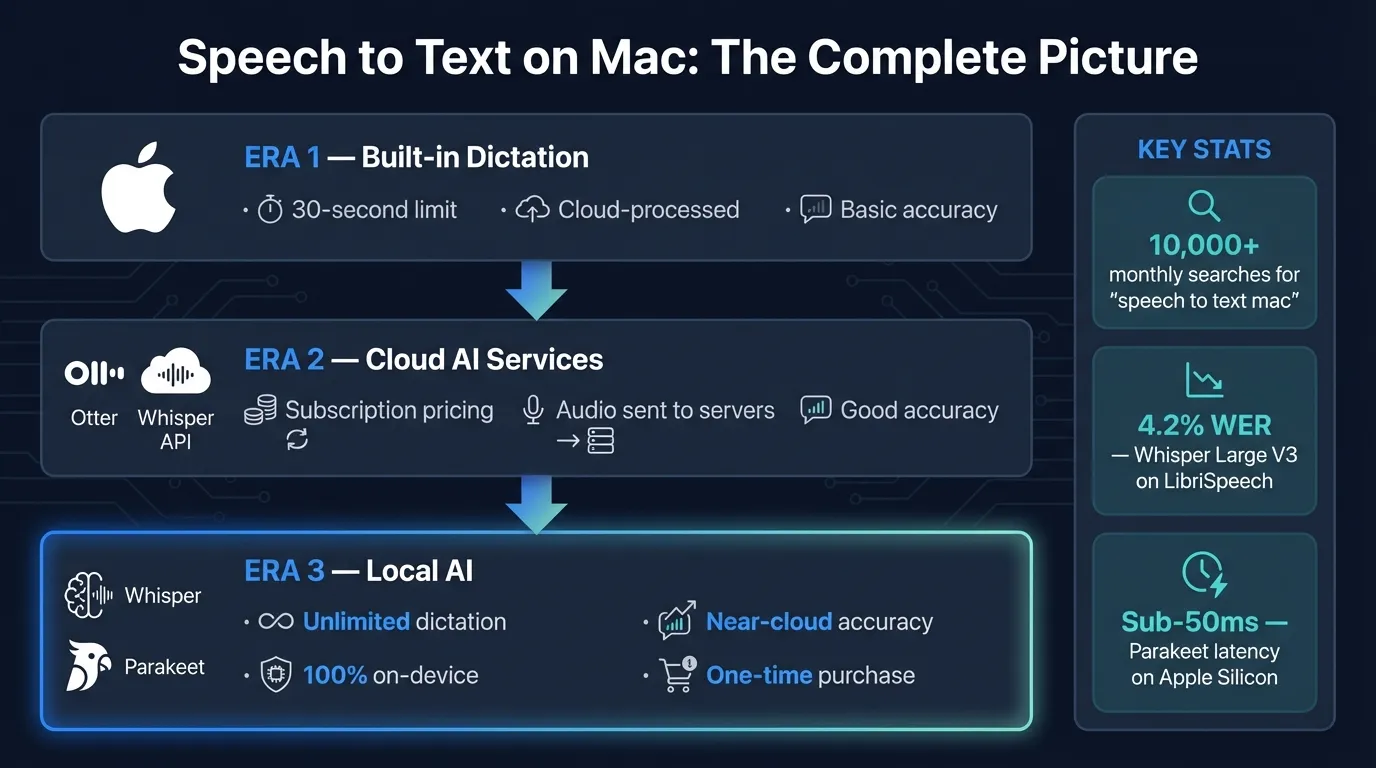
Here's how the major speech-to-text options on Mac compare at a glance:
How to set up speech to text on Mac#
Apple calls it "Dictation" in System Settings, but it's the same thing as speech to text and voice recognition.
- Click the Apple menu and open System Settings
- Click Keyboard in the left sidebar
- Scroll to Dictation and toggle it on
- Click Enable in the dialog that appears
On Apple Silicon Macs (M1 and later), macOS downloads a local speech model — roughly 150MB for English — during first setup. After that, everything runs on your device. On Intel Macs, dictation sent audio to Apple's servers for processing.
Set the activation shortcut#
The default is pressing Control twice. Change this under the Dictation dropdown:
- Press Fn twice
- Press either Command key twice
- Use the Microphone key (some keyboards)
Fn twice is my preference — there's no other use for it, which means no accidental triggers.
Turn on auto-punctuation#
Toggle Auto-punctuation on in the same settings panel. macOS inserts periods, commas, and question marks automatically based on your speech. It's not perfect — occasionally a period lands mid-sentence — but it beats saying "period" after every sentence.
Language support#
macOS dictation supports over 50 languages. Your Mac downloads the model for your selected language. Add more under System Settings > General > Language & Region. Accuracy is highest for English, with French, Spanish, German, and Mandarin performing well.
For full setup steps, voice commands, and troubleshooting, see the Mac dictation guide.
How built-in speech to text works#
Once dictation is active, a microphone indicator appears. Speak naturally — macOS processes your audio and inserts the transcription at your cursor.
On Apple Silicon Macs, the Neural Engine handles processing locally. No audio leaves your Mac. This changed with M1: Intel Macs required an internet connection and sent audio to Apple's servers, which is a meaningful privacy difference.
Voice commands you can use while dictating:
- "New line" — inserts a line break
- "New paragraph" — starts a new paragraph
- "Delete that" — removes the last dictated phrase
- "Select all" — selects all text in the field
- "Period," "comma," "question mark" — insert punctuation manually if auto-punctuation misses it
The system handles standard macOS text inputs reliably. Accuracy is good on everyday English vocabulary, and it works across every Mac app that accepts text input.
The 30-60 second limit#
Built-in macOS dictation stops listening after roughly 30-60 seconds of continuous speech. This is a design choice, not a bug — Apple's dictation is built for short bursts, not extended sessions.
In practice:
- Quick Slack message: fine
- Short email reply: fine
- 3-paragraph email: you'll restart 2-3 times
- Blog post or document: constant interruption
Each time you hit the limit, you re-trigger the shortcut and start a new session. If you dictate long-form content regularly, this is the main friction point.
Where built-in Mac speech to text falls short#
No continuous dictation. The time cap is the biggest issue. Extended writing means manually restarting dictation repeatedly.
No vocabulary control. You can't add custom words. Technical terms, product names, domain jargon, and uncommon proper nouns get misrecognized more often than common English. There's no way to teach the system your specific terminology.
No AI cleanup. What you say is what gets transcribed — filler words, false starts, and run-on sentences verbatim. No post-processing layer.
Inconsistent in web apps. In native macOS apps (Mail, Notes, Pages), built-in dictation is reliable. In browser-based apps — Gmail's compose window, Notion on the web, Slack in Chrome — behavior can be inconsistent. Text sometimes pastes to the wrong position if you switch focus mid-dictation.
Accuracy in noise. Background noise degrades accuracy on every model. Built-in dictation handles quiet rooms well but drops accuracy in noisy environments. Apple doesn't publish word error rate figures for the built-in model.
Speech to text apps for Mac: side-by-side comparison#
| App | Engine | Time limit | AI cleanup | Privacy | Price |
|---|---|---|---|---|---|
| Built-in macOS | Apple model | 30-60 sec | No | On-device (Apple Silicon) | Free |
| Hearsy | Parakeet or Whisper | None | Yes | 100% on-device | One-time |
| SuperWhisper | Whisper | None | Yes | On-device | Subscription |
| Wispr Flow | Cloud | None | Yes | Cloud upload | Subscription |
| VoiceInk | Whisper | None | Limited | On-device | One-time |
A few notes on this comparison:
Parakeet vs. Whisper: Parakeet (the default engine in Hearsy) achieves approximately 110x real-time factor on M4 Pro, per FluidInference's model benchmarks — 1 minute of audio processes in about 0.5 seconds. It supports 25 European languages. Whisper Large V3 achieves 2.7% word error rate on clean audio per OpenAI's benchmark data and supports 99 languages, but processes more slowly.
Cloud vs. on-device: Wispr Flow sends audio to servers. For most users that's fine. For regulated industries or sensitive content, on-device processing is the right default.
Type at the Speed of Speech
Hearsy turns your voice into text instantly — right on your Mac, with zero cloud dependency.
Hearsy#
Hearsy is a macOS menu bar app that addresses the main limitations of built-in dictation.
No time limit. Record until you stop — 10 minutes, 30 minutes, whatever you need.
Universal paste. Instead of injecting text directly into each app's text field (which is inconsistent in web apps), Hearsy copies the transcription to your clipboard and simulates Cmd+V. This works reliably in Gmail, Notion, VS Code, Slack — any Mac app.
Two speech engines. Parakeet by default for English under 50ms latency. Whisper for multilingual work or when you want the most widely-tested model.
Optional AI post-processing. An enhancement step removes filler words, fixes grammar, and reformats dictation as prose, an email reply, or structured notes. The AI step runs locally via MLX (Qwen 2.5 3B) or connects to Claude or OpenAI if you prefer.
Privacy. Everything processes on your Mac. No audio is uploaded, no account required.
For Apple Silicon performance benchmarks across M1 through M4, see the MacBook speech to text guide.
SuperWhisper#
SuperWhisper uses Whisper models, runs on-device, and has a polished interface. Main differences from Hearsy: it's Whisper-only (Hearsy also supports Parakeet, which is faster for English), and it charges a subscription rather than a one-time fee. For developers or multilingual users who want a subscription model, it's a solid option.
Wispr Flow#
Wispr Flow is the VC-backed option with the largest brand following in this space. It's polished and has strong AI integration. The fundamental trade-off: audio leaves your Mac for cloud processing. For most people that's acceptable. For healthcare, legal, or confidential business dictation, it's a meaningful constraint.
Which speech recognition engine is most accurate on Mac?#
Apple's built-in model handles standard English well. No published WER numbers, but it performs accurately on everyday vocabulary. Accuracy drops with technical terms, heavy accents, and domain jargon. You can't add custom vocabulary.
Whisper Large V3 achieves 2.7% word error rate on LibriSpeech clean audio per OpenAI's benchmark data — near human-level on studio-quality speech. Real-world performance is lower: 7.88% WER on mixed audio per AssemblyAI's benchmarks. It handles 99 languages and tends to be more robust on accented speech and diverse vocabulary.
Parakeet TDT v3 is faster than Whisper for English with competitive accuracy, but has less public benchmarking on edge cases (heavy accents, medical jargon). The speed advantage — 110x real-time on M4 Pro vs. roughly 10x for Whisper Large V3 Turbo on M2 — is real and noticeable in interactive dictation.
For standard English dictation of emails, documents, and notes, either Parakeet or Whisper Large V3 will outperform Apple's built-in model for continuous speech sessions.
Privacy: what actually happens to your audio#
Built-in macOS dictation (Apple Silicon): Processed on-device. Nothing sent to Apple's servers. This is true for M1 and later — Intel Macs worked differently and required a network connection.
Hearsy: All audio stays on your Mac. Parakeet runs via Core ML on the Neural Engine. Whisper runs via Metal GPU acceleration. If you enable AI enhancement with Claude or OpenAI, only your finalized transcription text — not raw audio — goes to those APIs, and only if you opt in.
SuperWhisper: On-device by default, similar to Hearsy.
Wispr Flow: Audio is uploaded to their servers for processing. Their privacy policy governs data handling, but audio does leave your device.
For most people, cloud processing is fine. For professionals handling sensitive conversations — medical records, legal matters, confidential business content — on-device processing is worth prioritizing. The privacy guide to local dictation covers this in more detail.
How to choose the right speech to text approach#
Use built-in macOS dictation if:
- You dictate short messages (under a minute)
- You don't want to install anything
- You're on an Apple Silicon Mac and cost matters more than extended session length
Use a third-party app if:
- You regularly dictate for more than 60 seconds at a stretch
- You want AI cleanup — filler word removal, grammar correction
- You dictate into browser-based apps where built-in dictation is inconsistent
- You want custom shortcuts or a global hotkey
Choose Hearsy specifically if:
- You want a one-time purchase instead of a subscription
- You want Parakeet's speed for English dictation
- You need AI post-processing with both local and cloud LLM options
- Privacy is a requirement and you want zero audio leaving your Mac
Choose SuperWhisper if:
- You prefer a subscription model with ongoing updates
- You want Whisper for its broader language and accent coverage
Choose Wispr Flow if:
- Cloud processing isn't a concern
- You want a heavily-funded, fast-evolving product with strong AI integration
Speech to text for different workflows#
Writing and long-form content#
The 30-60 second cap on built-in dictation is the dealbreaker for writers. Dictating 500 words means restarting the shortcut 10-15 times. Third-party apps with no time limit are necessary here.
The AI cleanup step is particularly useful for writing: dictated speech tends to be run-on and filler-heavy. A post-processing pass that removes "um" and "uh," adds paragraph breaks, and smooths grammar turns raw dictation into something close to edited prose.
See the voice dictation for writers guide for workflow-specific advice.
Email and messaging#
This is where built-in macOS dictation holds up. Most emails fit inside 60 seconds of speech. Quick Slack replies and short messages work well with the built-in option.
The caveat is browser-based email. Gmail's compose window isn't a standard macOS text input, which occasionally causes focus issues. Third-party apps using the clipboard paste method are more reliable. For Gmail-specific setup, see how to dictate emails in Gmail on Mac.
Developers#
Dictating code syntax is awkward regardless of which tool you use — saying "const user equals open curly brace" out loud doesn't map naturally to how you think about code. Voice typing for developers works better for:
- Code comments and docstrings
- Commit messages
- README and documentation
- Slack and email about technical topics
For code-adjacent dictation, Parakeet's speed helps: the fast feedback loop makes it easier to dictate and immediately review. For an extended look at developer workflows, see voice dictation for developers.
Professional and regulated industries#
Healthcare, legal, and finance users often have specific data handling requirements. Built-in macOS dictation on Apple Silicon is on-device. Hearsy is on-device. Both are appropriate for sensitive content.
Cloud-based options require checking whether your organization's policies permit audio to leave the device. Many regulated environments don't. For a compliance overview, see HIPAA and GDPR voice dictation on Mac.
Tips for better speech to text accuracy on Mac#
Use a decent microphone. Your MacBook's built-in mic works, but a headset mic positioned consistently near your mouth outperforms it — especially in noisy environments. Consistent mic-to-mouth distance matters more than mic hardware quality.
Find a quiet space. Background noise degrades accuracy on every model. HVAC hum, traffic, and ambient conversation all reduce transcription quality. A quiet room beats a great microphone in a noisy one.
Speak in complete sentences. Speech models have more context when you speak in full sentences. Single words, fragments, and mid-thought pauses increase recognition errors.
Don't overcorrect mid-speech. If you said something wrong, finish the sentence and fix it after. Stopping mid-sentence and restarting confuses the timing and often makes errors worse.
Test in Notes first. If dictation seems off in a target app, open Notes and dictate a sentence. Notes uses native macOS text inputs, so if it works in Notes, the engine is fine — the issue is with the specific app, not your setup.
For technical vocabulary: Use Whisper, which handles domain jargon better than Parakeet due to its broader training data. Alternatively, accept that technical terms will need manual correction regardless of which model you use — on-device models struggle with dense medical and legal terminology.
Frequently asked questions#
How do I enable speech to text on Mac?#
Open System Settings, click Keyboard, scroll to Dictation, and toggle it on. The default shortcut is pressing Control twice. It works in any app with a text field.
Is speech to text on Mac free?#
Yes. macOS includes built-in dictation at no cost. It runs on-device on Apple Silicon Macs (M1 and later) and works offline. Third-party apps cost extra but remove the 30-60 second time limit and add features like AI cleanup and universal paste.
Does speech to text work offline on Mac?#
On M1 and later Macs, built-in dictation runs entirely on-device — no internet required. Intel Macs sent audio to Apple's servers. Third-party apps like Hearsy and SuperWhisper also process everything locally and work offline.
What is the most accurate speech to text app for Mac?#
Whisper Large V3 achieves 2.7% word error rate on clean audio — near human-level accuracy. Apps like Hearsy and SuperWhisper run Whisper locally without cloud uploads. For English-only dictation, Parakeet is faster with comparable real-world accuracy.
Why does Mac dictation stop after 30 seconds?#
Built-in macOS dictation is designed for short input bursts, not continuous speech. It stops after roughly 30-60 seconds by design. Third-party apps have no time limit and can record continuously for as long as needed.
Ready to Try Voice Dictation?
Hearsy is free to download. No signup, no credit card. Just install and start dictating.
Download Hearsy for MacmacOS 14+ · Apple Silicon · Free tier available
Related Articles
Voice Typing on Mac: How to Type with Your Voice in Any App
9 min read
Voice Typing in Google Docs: The Complete 2026 Guide
10 min read
How to Set Up Voice Recognition on Mac in Under 2 Minutes
8 min read
Voice Control on Mac: Complete Guide to Hands-Free Mac Usage
12 min read
Speech to Text on MacBook: M-Series Performance Guide
8 min read