
Voice Control on Mac: Complete Guide to Hands-Free Mac Usage
Learn how to set up and use macOS Voice Control — the accessibility feature for controlling your Mac by voice. Includes commands, customization, and when to use Dictation instead.
macOS has a built-in feature called Voice Control that lets you operate your entire Mac by voice — no keyboard, no mouse. You can open apps, click buttons, scroll pages, navigate menus, and type text, all through spoken commands.
It's primarily designed as an accessibility tool for users with motor impairments who need fully hands-free computing. But if you've found Voice Control while searching for Mac voice-to-text, it's worth understanding exactly what it is — and how it differs from the simpler macOS Dictation feature.
This guide covers both.
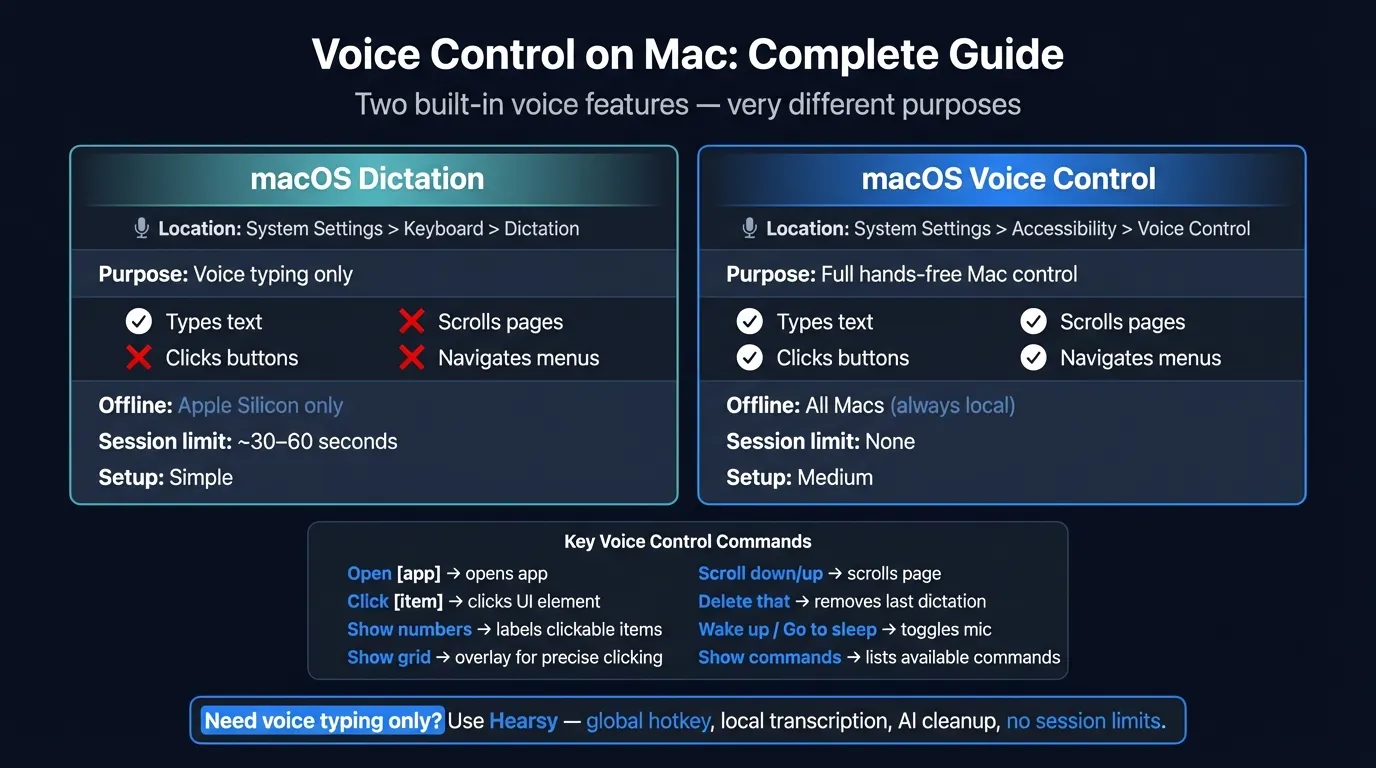
Voice Control vs. Dictation: the key distinction#
Before setting anything up, it's important to understand that macOS has two separate voice-to-text features in two different places:
| macOS Dictation | macOS Voice Control | |
|---|---|---|
| Location | System Settings > Keyboard > Dictation | System Settings > Accessibility > Voice Control |
| Primary purpose | Voice typing only | Full hands-free Mac control |
| Clicks buttons/menus | No | Yes |
| Scrolls pages | No | Yes |
| Switches apps | No | Yes |
| Types text | Yes | Yes |
| Works offline | Yes (Apple Silicon) / No (Intel) | Yes (all Macs) |
| Runs simultaneously | Yes | Replaces Dictation when active |
The short version: Dictation is for voice typing. Voice Control is for controlling your whole Mac by voice. When Voice Control is active, it handles text input too — standard Dictation becomes unavailable.
Most people searching for "voice control mac" actually want one of two things: either a way to type hands-free (in which case Dictation or a tool like Hearsy is simpler), or full hands-free Mac navigation (in which case Voice Control is the right tool). The rest of this guide covers Voice Control.
How to enable Voice Control on Mac#
Step 1: Turn it on#
- Open System Settings
- Click Accessibility in the sidebar
- Click Voice Control
- Toggle Voice Control on
The first time you enable it, macOS downloads the required speech recognition model — a one-time process that takes a minute or two depending on your internet speed. After that, everything runs locally on your Mac.
Step 2: What you'll see#
Once enabled, a small microphone icon appears in your menu bar. Voice Control displays a microphone overlay at the bottom of your screen showing whether it's listening (blue circle) or asleep (grey circle).
Listening mode is active by default when you turn Voice Control on. Every word you say is interpreted as either a command or dictated text.
Step 3: The activation shortcut#
The default shortcut for toggling Voice Control's listening state is pressing the Fn key once. You can change this:
- Go to System Settings > Accessibility > Voice Control
- Click the shortcut dropdown next to "Shortcut"
- Choose from Fn, Fn Fn (double-press), or a custom key combination
Saying "Wake up" or "Go to sleep" also toggles listening without touching the keyboard.
Core Voice Control commands#
Voice Control has hundreds of built-in commands. These are the most useful ones to start with.
Navigation and app control#
| Say this | What it does |
|---|---|
| "Open [app name]" | Opens an app — "Open Safari", "Open Mail" |
| "Quit [app name]" | Quits an app |
| "Switch to [app name]" | Switches focus |
| "Show [menu name]" | Opens a menu bar menu |
| "Click [button/link name]" | Clicks any named UI element |
| "Press [key name]" | Simulates a key — "Press Return", "Press Escape" |
| "Scroll up/down" | Scrolls the active window |
| "Scroll to top/bottom" | Jumps to the top or bottom |
| "Zoom in/out" | Zooms the current view |
Precise clicking with the grid#
When a button or link doesn't have a clear label to click by name, say "Show grid" to overlay a numbered grid on the screen. Then say a number to zoom into that section, or "Click [number]" to click directly.
You can also say "Show window grid" to grid the active window only, or "Show numbers" to label every clickable element on screen with a number you can say.
Dictating text#
When your cursor is in a text field, anything you say that isn't a recognized command gets typed as text. Say punctuation aloud: "period," "comma," "question mark," "new line."
| Say this | What it does |
|---|---|
| "Delete that" | Deletes the last thing you said |
| "Undo that" | Undoes the last action |
| "Select [word]" | Selects that word in the text |
| "Correct [word]" | Shows correction options for that word |
| "Bold that" | Applies bold formatting to selected text |
| "Capitalize [word]" | Capitalizes a specific word |
| "Insert [phrase] after [word]" | Places text at a specific position |
System-level commands#
| Say this | What it does |
|---|---|
| "Go home" | Shows the Desktop |
| "Force quit [app]" | Force quits a hung application |
| "Take screenshot" | Captures a screenshot |
| "Lock screen" | Locks the screen |
| "Sleep" | Puts the Mac to sleep |
| "Empty trash" | Empties the Trash |
Type at the Speed of Speech
Hearsy turns your voice into text instantly — right on your Mac, with zero cloud dependency.
How to see all commands#
The full command list is extensive. To browse it:
- Go to System Settings > Accessibility > Voice Control
- Click Commands
You'll see every built-in command organized by category. You can enable or disable individual commands, and create custom commands (more on that below).
You can also say "Show commands" while Voice Control is active — a panel slides in showing all available commands for whatever app is in focus.
Customizing Voice Control#
Creating custom commands#
Voice Control lets you add your own commands with custom phrases and actions. To add one:
- System Settings > Accessibility > Voice Control > Commands
- Click the + button
- Type a phrase — what you'll say
- Choose an action: insert text, press a keyboard shortcut, run an Automator workflow, or paste a snippet
For example, you could create a command "compose new message" that presses Cmd+N in Mail, or a command "insert address" that pastes your mailing address.
Vocabulary#
Voice Control learns words it doesn't recognize well through the Vocabulary section. If you frequently use a technical term, product name, or proper noun that gets misrecognized, add it:
- System Settings > Accessibility > Voice Control
- Click Vocabulary
- Add the word or phrase
Attention Awareness#
On Macs with a front-facing camera, Voice Control has an Attention Awareness option. When enabled, it only processes commands when you're looking at the screen — which reduces accidental command triggers in noisy environments or when speaking to someone nearby.
Limitations to know#
Learning curve. Voice Control has a steeper initial learning curve than simple dictation. The command set is large, the grid navigation takes practice, and the system can misinterpret speech as commands (or commands as dictated text) until you get a feel for how it distinguishes the two.
Not designed for pure dictation. If you mainly want to type by voice rather than control your Mac, Voice Control is overkill. Standard macOS Dictation (Keyboard settings) or a dedicated tool is faster for that specific task.
Latency on complex commands. Navigating menus and clicking numbered grid elements takes a few spoken steps. For basic tasks you'd otherwise do with a keyboard shortcut, Voice Control is slower than the keyboard — intentionally so, since it's designed to replace the keyboard entirely for users who can't use one.
Microphone quality matters more here. Standard dictation is relatively forgiving of ambient noise for text input. Voice Control is more sensitive — command misrecognition leads to unintended actions (clicking the wrong thing, triggering a menu), so a quality microphone and reasonably quiet environment help significantly.
When Voice Control is the right choice#
Voice Control makes sense when:
- You need to control your Mac entirely hands-free — navigation, menus, apps, and text input
- You have a repetitive strain injury (RSI), mobility limitation, or medical reason to avoid keyboard/mouse use
- You want to automate repetitive UI interactions with custom voice commands
- You need offline voice control (Voice Control works fully on-device, all Macs)
It's an outstanding accessibility tool that's more capable than most people realize — macOS ships with a full hands-free computing system built in, at no extra cost.
When Voice Control is more than you need#
If you're looking for a way to type faster, hands-free — composing emails, writing documents, dictating notes — Voice Control adds significant complexity for what is really a text input problem.
In that case, you have two simpler options:
macOS Dictation (System Settings > Keyboard > Dictation) handles text input with minimal setup. Press the shortcut, speak, done. The tradeoff: it transcribes literally (no AI cleanup), has a ~30–60 second session limit, and works offline only on Apple Silicon.
Hearsy is a Mac menu bar app that records from a global hotkey, transcribes locally using Parakeet (~0.2s) or Whisper (99+ languages), and pastes the result directly into whatever window is active — including email compose windows, Slack, Notion, code editors, and anywhere else on your Mac. An optional AI step cleans up the raw transcript before pasting: turning dictated speech into polished writing.
| macOS Voice Control | macOS Dictation | Hearsy | |
|---|---|---|---|
| Clicks and navigates Mac UI | Yes | No | No |
| Voice text input | Yes | Yes | Yes |
| Session time limit | None | ~30–60 sec | None |
| Offline (all Macs) | Yes | No (Intel) | Yes |
| AI text cleanup | No | No | Optional |
| One-time purchase | Free (built-in) | Free (built-in) | Yes |
| Setup complexity | Medium-high | Low | Low |
Most users who want to dictate text end up on macOS Dictation (for occasional use) or Hearsy (for regular use). Voice Control is the right choice when you need full Mac control, not just typing.
How to turn off Voice Control on Mac#
To stop the current session without disabling the feature: say "Go to sleep", or press the Fn key. The microphone icon goes grey — Voice Control stays ready but stops listening.
To disable Voice Control completely:
- Go to System Settings > Accessibility > Voice Control
- Toggle Voice Control off
The microphone icon disappears from the menu bar. Voice Control won't start again until you re-enable it.
If you accidentally activated Voice Control and want to stop it immediately: press Fn, or say "Go to sleep" — either will immediately stop the mic.
Tips for using Voice Control effectively#
Start with navigation commands before dictation. Get comfortable saying "Click [item]" and "Show numbers" before trying to dictate long text. The navigation model builds intuition for how Voice Control distinguishes commands from content.
Use "Show commands" when stuck. Saying "show commands" overlays the available commands for the current app. Better than guessing.
Speak command names, not descriptions. Say "Undo that" — not "go back" or "reverse that." Voice Control matches exact phrases. If something isn't working, check the Commands list for the exact phrasing.
Use Vocabulary for proper nouns. Names, technical terms, product names, and company names that Voice Control consistently misrecognizes can be added to Vocabulary (System Settings > Accessibility > Voice Control > Vocabulary).
Create shortcuts for repetitive actions. Custom commands shine for tasks you repeat dozens of times a day — inserting a standard sign-off, triggering a keyboard shortcut you can never remember, or opening a specific document.
Frequently asked questions#
What is Voice Control on Mac?#
Voice Control is a macOS accessibility feature in System Settings > Accessibility. It lets you control your entire Mac by voice — clicking, scrolling, navigating menus, switching apps, and dictating text — without a keyboard or mouse. It runs fully on-device.
How do I turn on Voice Control on Mac?#
System Settings > Accessibility > Voice Control > toggle on. macOS downloads the speech model the first time. Once enabled, a microphone icon appears in the menu bar and Voice Control starts listening.
What is the keyboard shortcut to activate Voice Control on Mac?#
The default shortcut is pressing the Fn key. You can change it in System Settings > Accessibility > Voice Control. You can also say "Wake up" or "Go to sleep" to toggle listening without touching a key.
How do I turn off Voice Control on Mac?#
Say "Go to sleep" to pause listening without disabling the feature. To disable it completely, go to System Settings > Accessibility > Voice Control and toggle it off.
Does Voice Control work offline?#
Yes. Voice Control processes all speech on-device using a locally downloaded model. No audio is sent to Apple's servers, and it works without an internet connection on all Macs.
What's the difference between Voice Control and Dictation on Mac?#
Dictation (Keyboard settings) handles voice-to-text input only — it types what you say. Voice Control (Accessibility settings) does that plus full Mac control: clicking UI elements, navigating menus, scrolling, and running custom commands. When Voice Control is active, it replaces standard Dictation.
Ready to Try Voice Dictation?
Hearsy is free to download. No signup, no credit card. Just install and start dictating.
Download Hearsy for MacmacOS 14+ · Apple Silicon · Free tier available
Related Articles
Voice Typing on Mac: How to Type with Your Voice in Any App
9 min read
Voice Typing in Google Docs: The Complete 2026 Guide
10 min read
How to Set Up Voice Recognition on Mac in Under 2 Minutes
8 min read
Speech to Text on MacBook: M-Series Performance Guide
8 min read
Speech to Text on Mac: The Complete 2026 Guide
13 min read