
Speech to Text in Google Docs: Built-in Feature vs Better Alternatives
How to use speech to text in Google Docs, what the built-in tool can't do, and which alternatives work better for Mac users who need more than Docs-only dictation.
Google Docs has built-in speech to text. It's free, requires no installation, and works well enough for casual dictation. But it has hard limits that matter for anyone who dictates regularly: it only works inside a Chrome browser tab, it requires internet, it sends audio to Google's servers, and it doesn't add punctuation automatically.
This guide compares every speech-to-text method that works with Google Docs on Mac — the built-in feature, macOS dictation, and third-party apps — so you can pick the right one for how you actually work.
For detailed instructions on the built-in feature specifically (voice commands, troubleshooting, setup), see our companion guide: Voice Typing in Google Docs: The Complete 2026 Guide.
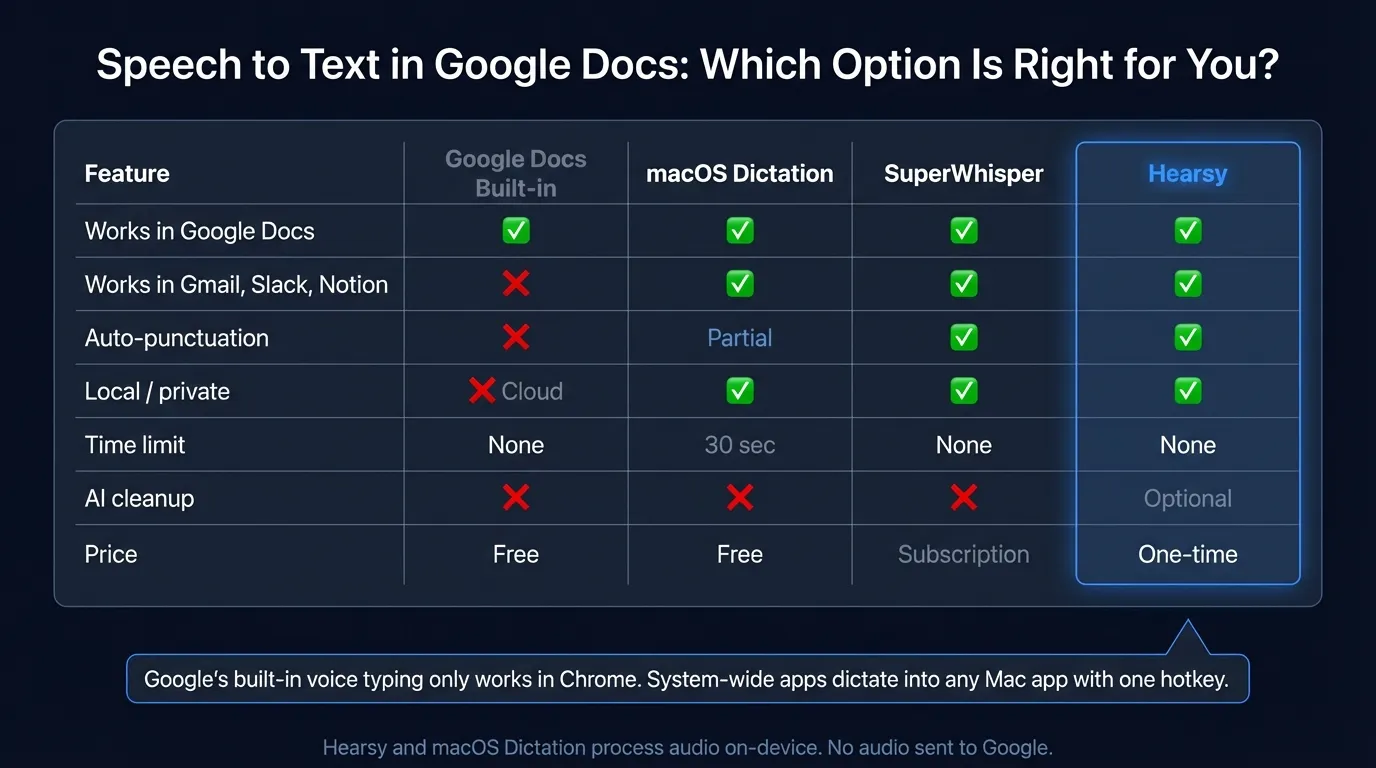
Here's how Google Docs speech to text compares with the main alternatives for Mac:
How Google Docs speech to text works (quick overview)#
Google calls the feature "Voice typing." It lives under the Tools menu.
- Open your document in Chrome (or Edge — Firefox and Safari are not supported)
- Click Tools in the menu bar, then Voice typing
- A microphone panel appears on the left side of your document
- Click the microphone to start listening
- Allow Chrome microphone access when prompted
Keyboard shortcut: Cmd+Shift+S on Mac, Ctrl+Shift+S on Windows.
That's the basics. For voice commands, formatting controls, and troubleshooting when things go wrong, our voice typing guide covers everything in detail.
What Google's speech to text does well#
For basic document dictation inside Chrome, the built-in feature is genuinely useful:
- Free, no setup. No extensions, accounts beyond a Google login, or extra software.
- 100+ languages. Supports Arabic, Chinese, French, German, Japanese, Spanish, Portuguese, and many more. Change the language in the voice typing panel.
- Accurate for conversational prose. Google's speech recognition is solid — comparable to cloud dictation services in most real-world use cases.
- Voice editing commands. In English, you can say "delete last word," "select paragraph," "undo," and a range of formatting commands.
For someone who writes exclusively in Google Docs and needs occasional dictation, starting with the built-in tool makes sense. The problem is that most people who dictate regularly run into its limitations quickly.
Where Google's speech to text falls short#
It only works in Chrome, in Google Docs#
This is the biggest constraint. Google's voice typing runs inside the Docs web app in the Chrome browser. It doesn't work in:
- Gmail's compose window
- Google Sheets or Slides
- Notion, Obsidian, or Bear
- Slack, Teams, or any messaging app
- VS Code, Terminal, or any developer tool
- Any native macOS application
If you want to dictate into anything outside Docs, you need a separate tool. That means one tool for Docs, another for email, another for Slack — or one system-wide tool that covers everything.
Audio goes to Google's servers#
Google Docs voice typing is cloud-based. Every word you speak is transmitted to Google's servers for processing. For most personal use, this is fine. For anything involving client information, medical records, legal work, confidential business discussions, or regulated data, the cloud dependency is a problem.
Local speech recognition tools process audio on your device without any data leaving your Mac.
No automatic punctuation#
Every period, comma, question mark, and dash has to be spoken out loud. You say "The meeting ran long period we'll reschedule for Friday period." After a few sessions you adjust, but it adds cognitive load — you have to track punctuation in your head while forming sentences, which interrupts flow.
Auto-punctuating tools add periods, commas, and question marks based on speech patterns. You just talk normally.
Requires internet#
No offline mode. If your connection drops, voice typing stops. Built-in macOS dictation and local apps continue working regardless of network status.
No AI cleanup#
What you say is what you get, including filler words, false starts, and repeated phrases. There's no post-processing layer to remove "um," "uh," and "you know" or reformat spoken text into clean prose.
Some third-party dictation tools offer optional AI cleanup that removes filler words, fixes grammar, and can reformat transcript as email, bullet points, or code comments.
Type at the Speed of Speech
Hearsy turns your voice into text instantly — right on your Mac, with zero cloud dependency.
Speech to text alternatives for Google Docs on Mac#
If Google's built-in tool isn't enough, there are three main alternatives for Mac users.
macOS built-in dictation#
Every Mac running macOS Ventura or later has a dictation feature that works system-wide — not just in one browser tab.
Enable it: System Settings > Keyboard > Dictation > On.
How it works: Press the Fn key twice (or a custom shortcut), speak, press Fn twice again. Text gets typed at your cursor position, including inside a Google Docs tab in Chrome.
Pros:
- Free, already on your Mac
- Works in any app, including Docs, Gmail, Slack, and native apps
- Can run on-device using Apple's speech model (Apple Silicon Macs only)
Cons:
- Stops listening after roughly 30 seconds of continuous speech
- No auto-punctuation by default (though macOS Ventura added automatic punctuation on some setups)
- Limited to English and a handful of other languages for on-device mode
- No AI post-processing
The 30-second limit is the practical constraint. For quick messages and short passages, it works. For longer documents, you're constantly restarting.
SuperWhisper#
SuperWhisper is a macOS dictation app that runs Whisper locally. It costs around $29/year (subscription) and works system-wide — press a hotkey, speak, and text pastes into whatever app is active, including Google Docs.
Pros:
- 99+ languages via Whisper
- Works everywhere on Mac, not just in Docs
- Processes audio locally (no cloud upload)
Cons:
- Subscription pricing
- No Parakeet engine, so latency is higher than some alternatives
- No AI post-processing without an additional setup
Hearsy#
Hearsy is a macOS dictation app that runs Whisper and Parakeet locally. It's a one-time purchase (no subscription) and works in any Mac app — including Google Docs tabs in any browser.
How it works with Google Docs: Press Hearsy's global hotkey from anywhere. Speak. When you stop, Hearsy transcribes locally and pastes text into your current cursor position — which can be inside a Docs document, Gmail, Slack, VS Code, or anywhere else.
The practical advantage over Google's built-in tool is coverage: one app replaces the need to juggle separate dictation tools per application.
Pros:
- Works everywhere on Mac, not only in Google Docs
- Two STT engines: Parakeet (sub-50ms, optimized for English) and Whisper (99+ languages, slightly slower)
- 100% local processing — audio never leaves your Mac
- Optional AI cleanup to remove filler words and reformat text
- One-time purchase, no subscription
Cons:
- macOS only — no Windows or browser version
- Parakeet engine optimized for English; use Whisper for other languages
- Costs money (Google's built-in is free)
For a step-by-step guide to setting up Hearsy with Google Docs, see our Hearsy + Google Docs workflow page.
Comparison: speech to text options for Google Docs on Mac#
| Google Docs Built-in | macOS Dictation | SuperWhisper | Hearsy | |
|---|---|---|---|---|
| Works in Google Docs | Yes | Yes | Yes | Yes |
| Works in Gmail, Slack, Notion | No | Yes | Yes | Yes |
| Works in native macOS apps | No | Yes | Yes | Yes |
| Auto-punctuation | No | Partial | Yes | Yes |
| Local processing (private) | No | Yes (Apple Silicon) | Yes | Yes |
| Requires internet | Yes | No | No | No |
| Continuous dictation (no time limit) | Yes | No (30 sec) | Yes | Yes |
| AI cleanup | No | No | No | Optional |
| Price | Free | Free | ~$29/yr | One-time |
Which option should you choose?#
Use Google's built-in voice typing if:
- You write exclusively in Google Docs and nowhere else
- Privacy of audio isn't a concern
- You need support for a language beyond English and want the simplest possible setup
- You're looking to try dictation with no cost or installation
Use macOS built-in dictation if:
- You need system-wide dictation for free
- You only dictate short passages under 30 seconds
- You want on-device processing without paying for a third-party app
Use a third-party app (Hearsy, SuperWhisper) if:
- You dictate into more than one app — Gmail, Slack, Notion, native apps, not just Docs
- You need auto-punctuation (stops you from saying every period out loud)
- Privacy matters: you want audio processed locally, not sent to Google
- You dictate for longer than 30 seconds at a time
- You want optional AI cleanup to remove filler words and improve output quality
Most people who get serious about dictation move past Google's built-in tool once they start dictating outside Docs. System-wide apps remove the friction of switching tools by covering every app from one hotkey.
Tips for better accuracy with any method#
Whether you use Google's built-in tool or a third-party app, these practices improve results:
Use a headset for longer sessions. Built-in laptop mics pick up keyboard sounds and ambient noise. A headset at consistent distance from your mouth produces better, more consistent recognition.
Speak at normal pace. Both Google's model and local Whisper-based apps handle natural speech better than slow, over-enunciated dictation. Don't slow down artificially — just speak clearly.
Dictate in chunks, edit after. Don't stop mid-sentence to correct errors. Dictate a full paragraph, then review. Constant interruptions break your flow more than the mistakes themselves.
Keep cursor in the document body (Google only). Google's voice typing stops if focus leaves the document. Don't click a sidebar, browser tab, or another window while the mic is active. System-wide tools like Hearsy and macOS dictation don't have this limitation.
Say punctuation as you go (Google only). If you're using Google's built-in tool, work punctuation into your speech rhythm: "The report is due Friday period send it before noon period." With auto-punctuating tools, skip this entirely.
Frequently asked questions#
How do I do speech to text in Google Docs?#
Open your document in Chrome, click Tools > Voice typing, and click the microphone icon. The keyboard shortcut is Cmd+Shift+S on Mac. Allow microphone access when prompted, then speak — text appears at your cursor position.
Is Google Docs speech to text free?#
Yes. Voice typing is built into Google Docs at no cost and is available with any Google account.
Why is speech to text not working in Google Docs?#
Most common causes: not using Chrome or Edge (Firefox and Safari aren't supported), Chrome blocked from microphone access, another app holding the microphone, or the document language set to a non-English language (which disables voice commands). Check Chrome's mic permissions at chrome://settings/content/microphone and verify Chrome is allowed in macOS System Settings > Privacy & Security > Microphone.
What is the best speech to text for Google Docs?#
For casual dictation inside Docs only, Google's built-in voice typing is free and works well. For anyone who needs dictation across Gmail, Slack, Notion, or desktop apps, a system-wide tool like Hearsy is more practical — press one hotkey from any app and text pastes wherever your cursor is.
Does Google Docs speech to text work offline?#
No. Google's voice typing requires an internet connection — audio is processed on Google's servers, not on your device. For offline speech to text, use macOS built-in dictation with the on-device setting (Apple Silicon Macs) or a local app like Hearsy that processes audio entirely on your Mac.
Ready to Try Voice Dictation?
Hearsy is free to download. No signup, no credit card. Just install and start dictating.
Download Hearsy for MacmacOS 14+ · Apple Silicon · Free tier available
Related Articles
Voice Typing on Mac: How to Type with Your Voice in Any App
9 min read
Voice Typing in Google Docs: The Complete 2026 Guide
10 min read
How to Set Up Voice Recognition on Mac in Under 2 Minutes
8 min read
Voice Control on Mac: Complete Guide to Hands-Free Mac Usage
12 min read
Speech to Text on MacBook: M-Series Performance Guide
8 min read