
Mac Dictation Not Working? Here's How to Fix It
Mac dictation stopped working? Step-by-step fixes for microphone permissions, corespeechd crashes, Voice Control conflicts, and Sequoia-specific bugs.
Mac dictation stopped working. Maybe it was fine yesterday, maybe it broke after a macOS update, or maybe the microphone icon just never appears when you press the shortcut. Here's how to fix it.
These fixes are ordered from fastest to most disruptive. Most people are done by fix 3.
Here's a visual guide to the most common causes and their fixes:
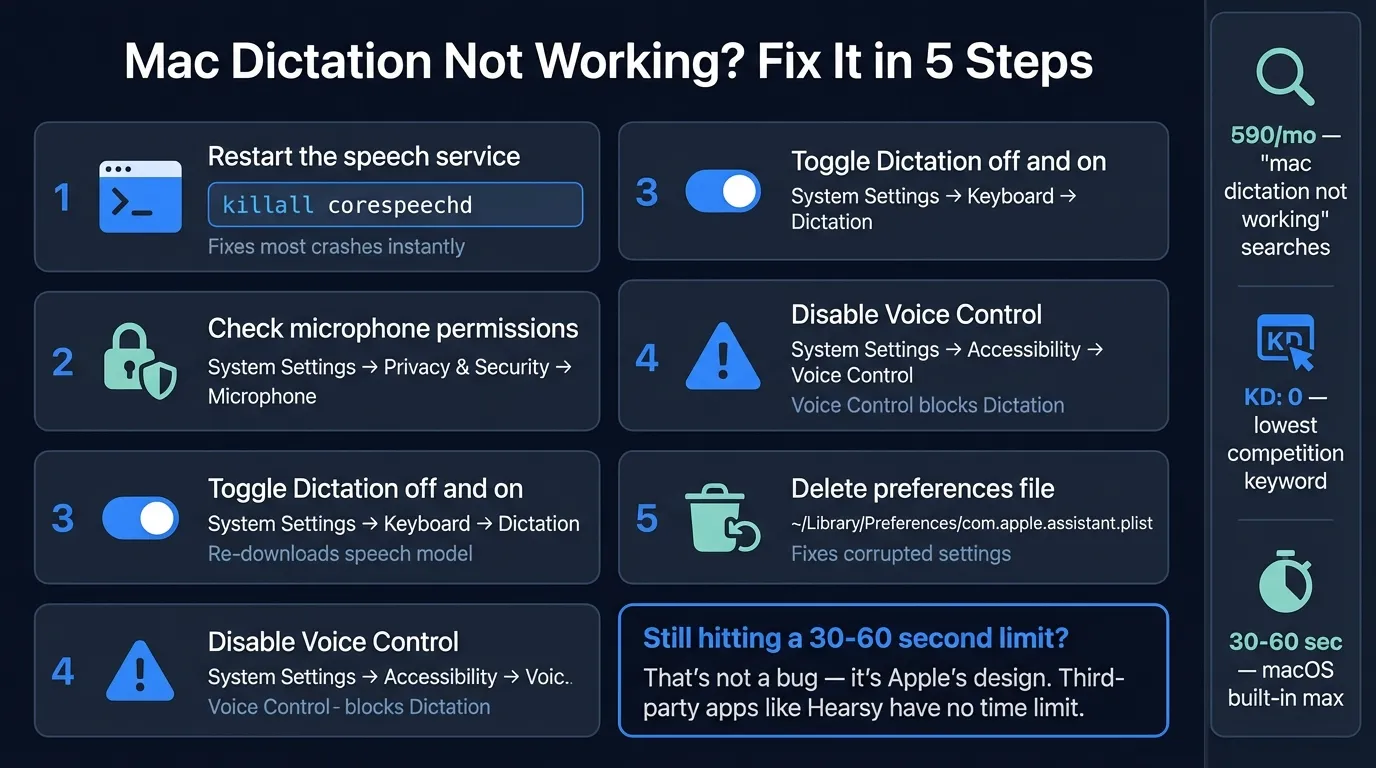
Quick fix: try this first#
Open Terminal (Applications > Utilities > Terminal) and run:
killall corespeechd
This restarts the dictation backend. It resolves the majority of dictation failures in under 5 seconds — no reboot required. Try dictating immediately after.
If that didn't work, keep reading.
Fix 1: Confirm dictation is enabled#
macOS occasionally disables Dictation after major updates without warning.
- Open System Settings
- Click Keyboard in the sidebar
- Scroll to the Dictation section
- Confirm the toggle is on
If it's off, turn it on and click Enable in the confirmation dialog. On Apple Silicon Macs (M1 and later), macOS will re-download the on-device speech model — about 100-200 MB, which takes 1-3 minutes depending on your connection. On Intel Macs, dictation streams audio to Apple's servers, so no download is needed.
Fix 2: Check microphone permissions#
macOS has two separate places where microphone access can be blocked. Both need to be correct.
Microphone privacy permission:
- Open System Settings
- Click Privacy & Security in the sidebar
- Click Microphone
- Make sure the toggle next to Dictation is on
Microphone input:
- Open System Settings > Sound
- Click the Input tab
- Confirm your microphone is selected and active
- Speak and watch the input level meter — if it doesn't move, your Mac isn't detecting audio
If the level meter stays flat: try switching to your Mac's built-in microphone as a test. Bluetooth devices (AirPods, headsets) are a frequent cause of this — macOS sometimes assigns them the wrong audio profile after unlocking or switching between devices. Disconnect and reconnect your Bluetooth device, or select the built-in microphone to rule it out.
Fix 3: Restart the speech service#
The dictation backend is a background process called corespeechd. It gets into bad states after waking from sleep, switching audio inputs, or after certain app crashes. This is the single most reliable fix for most dictation failures.
Open Terminal and run:
killall corespeechd
macOS restarts the process automatically. Try dictating right away.
If corespeechd alone doesn't fix it, run the full set of speech-related processes:
killall -9 corespeechd SpeechRecognitionCore
This is safe — you're restarting background services, not deleting anything.
Fix 4: Check if Voice Control is interfering#
Voice Control is macOS's accessibility feature for hands-free computer control. It's completely separate from Dictation, but both use the microphone and the same speech recognition infrastructure. When both are active, they conflict — and Dictation usually loses.
- Open System Settings
- Click Accessibility in the sidebar
- Click Voice Control
- If the toggle is on, turn it off
Then try dictating again. This cause is easy to miss because Voice Control lives under Accessibility, not the Keyboard settings where Dictation lives.
Also check: If "Listen for 'Hey Siri'" is active, Siri continuously monitors the microphone in the background. Go to System Settings > Siri & Spotlight and toggle off "Listen for 'Hey Siri'" to eliminate this as a factor.
Type at the Speed of Speech
Hearsy turns your voice into text instantly — right on your Mac, with zero cloud dependency.
Fix 5: Toggle dictation off and on#
This forces macOS to re-download and re-initialize the speech model, which clears corruption introduced by updates.
- Go to System Settings > Keyboard > Dictation
- Toggle Dictation off
- Click OK at the confirmation prompt
- Wait 30 seconds
- Toggle it back on
Give it 1-2 minutes to re-download the model, then test. This fix works especially well when dictation stopped working immediately after a macOS update.
Fix 6: Verify your language settings match#
If your system language and dictation language don't match, dictation silently fails. The microphone icon either disappears or stops responding with no error message.
- Go to System Settings > Keyboard > Dictation
- Check which language is selected under Language
- Go to System Settings > General > Language & Region
- Confirm your preferred language matches the dictation language
On macOS Sequoia, some users have been unable to remove English (US) from dictation languages due to Apple Intelligence requirements. If you're on a non-US English locale, setting your system region to match your language variant (e.g., United Kingdom for English UK) has resolved this for several users in Apple's community forums.
Fix 7: Delete the dictation preferences file#
When the preferences file gets corrupted, dictation behaves unpredictably — working sometimes, failing others. Deleting it forces macOS to create a clean one.
- Open Finder
- Click Go in the menu bar, then Go to Folder…
- Paste:
~/Library/Preferences/ - Find com.apple.assistant.plist
- Move it to Trash
- Restart your Mac
- Re-enable Dictation in System Settings if it's been turned off
Your dictation settings will reset to defaults, but dictation itself should work.
Fix 8: Install macOS updates#
Apple has shipped dictation bug fixes in several point releases. If you're on Sequoia 15.0 or 15.1, there are known dictation issues patched in 15.2 and later.
Go to System Settings > General > Software Update and install any available updates.
If you're already on the latest version and dictation still doesn't work, move to the next fix.
Fix 9: Nuclear reset — remove speech models#
Last resort. This removes all speech recognition models and forces macOS to re-download everything from scratch. The download is several hundred megabytes.
Open Terminal and run:
sudo rm -rf /Library/Speech/Recognizers/
Enter your admin password when prompted. Restart your Mac, then re-enable Dictation in System Settings. The model download takes 2-5 minutes.
Sequoia-specific bug: "new line" inserts a space#
If you're on macOS 15 Sequoia and the "new line" or "new paragraph" commands insert a space instead of an actual line break, this is a known bug. It affects multiple Sequoia versions and hasn't been fully resolved as of early 2026. Multiple users have reported this on Apple's community forums, and the formatting commands regression appears in macOS 15.3.1 as well.
Workarounds:
- Pause briefly before and after saying "new line" — the command is sensitive to timing and phrasing
- Continue dictating without line break commands, then add breaks manually afterward
- Try "press return key" instead of "new line" in some apps
What if dictation is working but keeps stopping?#
If dictation is technically functional but stops after 30-60 seconds, that's not a bug. macOS built-in Dictation stops listening after roughly 30-60 seconds of continuous speech — Apple doesn't publish the exact limit, but this is the observed behavior.
There's no setting to extend this limit. It's a design constraint of the built-in implementation.
For longer dictation sessions — emails, documents, notes — you need an app that doesn't impose this restriction. Apps like Hearsy, SuperWhisper, and VoiceInk run speech models directly on your Mac with no time limit. Hearsy uses either Parakeet (English, under 50ms latency) or Whisper (99 languages, ~1-2 seconds to process) depending on your needs.
For the full comparison, see the speech to text on Mac guide and the Mac dictation guide.
Quick reference: the most common causes#
| Symptom | Likely cause | Fix |
|---|---|---|
| Microphone icon never appears | Dictation disabled | Fix 1 |
| Icon appears, nothing transcribed | Mic permission blocked | Fix 2 |
| Worked before, broken now | corespeechd crashed | Fix 3 |
| Dictation and Voice Control both on | Service conflict | Fix 4 |
| Broke after macOS update | Corrupted model/prefs | Fixes 5, 7, 8 |
| Stops after 30-60 sec | By design | Not a bug — see above |
| "New line" inserts a space | Sequoia bug | See Sequoia section |
Frequently asked questions#
Why is Mac dictation not working?#
The most common cause is the corespeechd speech service crashing or entering a bad state. Run killall corespeechd in Terminal — this restarts the dictation backend in under 5 seconds and resolves most failures without a reboot.
How do I restart Mac dictation without rebooting?#
Open Terminal and run killall corespeechd. macOS automatically restarts the speech service and you can dictate again immediately.
Why did Mac dictation stop working after an update?#
macOS updates sometimes corrupt the speech cache or change permission requirements. Toggle Dictation off and on in System Settings > Keyboard > Dictation. If that doesn't work, delete com.apple.assistant.plist from ~/Library/Preferences/ and restart your Mac.
Can Voice Control block Mac dictation?#
Yes. Voice Control and Dictation use the same speech recognition infrastructure. If both are active, they conflict. Disable Voice Control in System Settings > Accessibility > Voice Control, then try dictating again.
How do I fix the Mac dictation microphone not working?#
Check two things: System Settings > Privacy & Security > Microphone (confirm Dictation has access), and System Settings > Sound > Input (confirm the right microphone is selected and showing input level activity when you speak).
Ready to Try Voice Dictation?
Hearsy is free to download. No signup, no credit card. Just install and start dictating.
Download Hearsy for MacmacOS 14+ · Apple Silicon · Free tier available
Related Articles
Voice Typing on Mac: How to Type with Your Voice in Any App
9 min read
Voice Typing in Google Docs: The Complete 2026 Guide
10 min read
How to Set Up Voice Recognition on Mac in Under 2 Minutes
8 min read
Voice Control on Mac: Complete Guide to Hands-Free Mac Usage
12 min read
Speech to Text on MacBook: M-Series Performance Guide
8 min read