
Voice Coding on Mac: Dictate Code in Cursor, VS Code, and Terminal
How to use voice dictation for coding on Mac — dictating AI prompts in Cursor, VS Code Copilot Chat, code comments, commit messages, and what still has to be typed.
The phrase "voice coding" means different things depending on who says it.
For accessibility researchers, it means full voice control of a computer — programs that let you navigate and operate software entirely hands-free. That's powerful, but complex, and optimized for people who can't use a keyboard at all.
For most developers in 2026, voice coding means something simpler and more immediately practical: using voice input to drive AI coding tools. You speak a problem description. The AI writes the code. Your hands stay off the keyboard for the parts that don't require precision — and AI handles the parts that do.
This guide covers the practical version: how to use voice dictation in Cursor, VS Code, and Terminal on a Mac, what the workflow actually looks like, and where the limits are.
What you can actually do by voice#
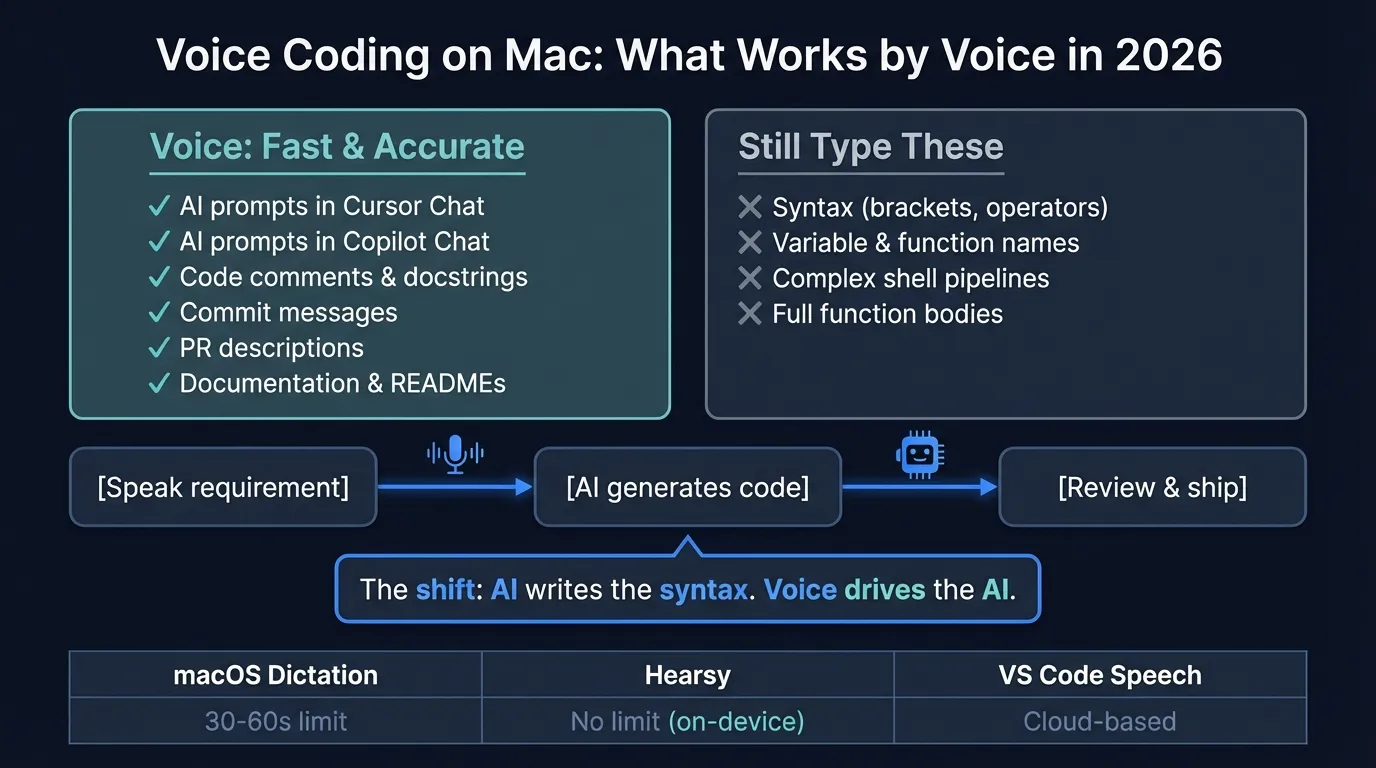
The honest breakdown of what voice coding covers in 2026:
| Task | Voice? | Notes |
|---|---|---|
| AI prompts in Cursor Chat | ✓ | Primary use case |
| AI prompts in VS Code Copilot Chat | ✓ | Primary use case |
| Code comments and docstrings | ✓ | Fast and accurate |
| Commit messages and PR descriptions | ✓ | Works well |
| Documentation and README files | ✓ | Fast for prose |
| Terminal commands | Partial | Short commands fine; complex pipelines, type them |
| Variable names and identifiers | ✗ | Still type these |
| Syntax (brackets, operators, indentation) | ✗ | Still type these |
| Full function bodies by narration | ✗ | Awkward and error-prone |
The pattern is clear: voice handles natural language well and struggles with the parts of code that aren't natural language. The shift that makes this practical in 2026 is that AI coding tools let you describe what you want rather than write it — so voice input drives more of the actual coding than it could a few years ago.
Dictating AI prompts in Cursor#
Cursor's AI chat is where voice input has the most leverage. A detailed prompt to Cursor — describing a function you need, a refactor you want, a bug you're debugging — is a paragraph or two of natural language. That's exactly what voice dictation handles well.
The workflow:
- Click into Cursor's AI chat input, or trigger inline chat with
Cmd+K - Press your dictation hotkey (macOS built-in: Control + Control)
- Speak your prompt naturally
- The transcription pastes into the chat field
- Review, adjust if needed, press Enter
A prompt that would take 45 seconds to type might take 10 seconds to say. For multi-part prompts — "take this function, make it handle null inputs gracefully, add a JSDoc comment, and make sure it doesn't break the existing unit tests" — speaking is considerably faster than typing.
Cursor doesn't have built-in voice input, so you're using macOS-level dictation. Any system-wide dictation app works: macOS built-in, Hearsy, or similar. These apps type into whatever text field is in focus — including Cursor's chat input, Cmd+K inline prompts, and any other text field in the app.
Inline edits with Cmd+K#
The Cmd+K inline edit flow is particularly well-suited to voice. Highlight a function, press Cmd+K, dictate your instruction:
"Add error handling for the case where the API returns a 429 status and retry with exponential backoff."
Cursor reads the selected code plus your spoken instruction and generates the edit. The advantage over typed prompts: you speak at full thought speed rather than typing speed. For any instruction longer than 20 words, voice is faster.
For a complete setup guide, see the Hearsy + Cursor workflow.
Voice input in VS Code with Copilot Chat#
VS Code Copilot Chat works the same way. The chat sidebar, inline chat (Cmd+I), and Quick Chat (Shift+Cmd+I) all accept text input from system dictation.
VS Code also has a VS Code Speech extension from Microsoft that adds a dedicated microphone button to the Copilot Chat interface. If you use that extension, you get voice input integrated directly into the chat UI — press the mic, speak, the transcript goes into the prompt field automatically.
The VS Code Speech extension uses cloud transcription (Azure Speech Services), which sends audio to Microsoft's servers. If you're working on sensitive or proprietary code and need everything local, using system-wide dictation from an on-device app like Hearsy is the privacy-preserving alternative.
For a step-by-step walkthrough, see the Hearsy + VS Code workflow.
Continue reading
Dictate into Any App on Mac
Gmail, Slack, Word, Notion — Hearsy works everywhere. Just press a key and speak.
Terminal commands#
Voice input in Terminal works, with limits.
What works well:
cd path/to/projectwhen the path is straightforwardgit commit -mfollowed by a dictated messagenpm run dev,yarn test,make build— common short commandsgrep "search term"for simple searches
Where it breaks down:
- Complex pipelines with
|,&&, and|| - Commands with many flags (
rsync -avz --exclude=node_modules --delete) - File paths with unusual names, deep nesting, or no natural word boundaries
- Anything with backtick substitution or variable expansion
The practical approach: type commands, dictate the string arguments. For git commit, type git commit -m ", dictate the message, then close the quote. Hybrid input is faster than trying to voice the entire command or type the entire commit message.
RSI and hands-free coding#
If keyboard pain is the primary driver, the calculation is different. People managing RSI or repetitive strain injuries often need to reduce hands-on-keyboard time significantly, not just speed up prompts.
The combination that tends to work best:
- AI coding tools for code generation — Cursor or Copilot handles syntax while you describe requirements by voice
- Voice dictation for all prose — comments, documentation, commit messages, Slack, PR descriptions
- Voice control for navigation — tools like Talon Voice or macOS Voice Control handle mouse movement, window switching, and editor commands
Hearsy and Talon Voice solve different problems. Talon is full computer voice control for developers — it can navigate code, move the cursor, and issue editor commands. Setup takes significant time and learning. Hearsy is fast real-time transcription for natural language input. For developers managing RSI who want the complete hands-free workflow, combining both makes sense. For developers who mainly want to speed up AI prompts and prose tasks, Hearsy alone covers most of the use case.
See Talon Voice vs Hearsy for a detailed comparison.
Setup on Mac#
macOS built-in dictation#
System Settings → Keyboard → Dictation → On. Default trigger: press Control twice.
Works in Cursor, VS Code, iTerm2, and any other app. Stops after 30-60 seconds of continuous speech per session — workable for short Copilot prompts, limiting for longer ones.
Hearsy#
Hearsy works system-wide in every dev tool with no time limit. The Parakeet engine transcribes in under 50ms on Apple Silicon. Whisper Large V3 takes 1-2 seconds but handles 99 languages and performs better on technical vocabulary and less common identifiers.
Set a hotkey once; it works in Cursor, VS Code, iTerm2, browsers, and any other app automatically. Audio never leaves your Mac.
VS Code Speech extension#
Available in the VS Code Marketplace (search "VS Code Speech"). Adds a microphone button directly to the Copilot Chat UI. Uses Azure Speech Services (cloud), so audio is processed on Microsoft's servers. Useful if you want the mic button integrated into the interface; not suitable for local-only workflows.
Dictation methods compared#
| macOS built-in | Hearsy | VS Code Speech | |
|---|---|---|---|
| Works in Cursor | Yes | Yes | No |
| Works in VS Code Chat | Yes | Yes | Yes (mic button) |
| Works in iTerm2 | Yes | Yes | No |
| Time limit | 30-60 seconds | None | None |
| Audio processing | On-device (Apple Silicon) | On-device | Azure (cloud) |
| Languages | 50+ | 99 (Whisper) / English (Parakeet) | 30+ |
| Cost | Free | One-time purchase | Free |
For very short prompts — a one-sentence Copilot instruction, a quick commit summary — macOS built-in dictation is free and works well. For longer prompts, multi-paragraph documentation, or any context where the 30-60 second limit interrupts your flow, a no-limit option is worth the difference.
Practical tips#
Speak the whole prompt, then review. Don't pause mid-sentence to check the transcription — this breaks your thought and makes the prompt less coherent. Speak the complete idea, read it back, adjust.
Longer prompts to AI tend to produce better results. When typing, it's natural to be terse. When speaking, it's natural to add context. "Refactor this to be more readable" becomes "refactor this function so that someone who doesn't know our codebase can understand what it does in 30 seconds without reading the comments." Cursor typically produces better output with the longer version.
Use a headset in noisy environments. Open offices and shared workspaces have enough ambient noise to affect transcription accuracy, especially for technical terms. A close-talking headset or in-ear microphone cuts noise significantly.
Keep the target app in focus before triggering dictation. Dictation pastes wherever the cursor is. Trigger it after you've positioned the cursor in the right field — not before.
For git commits: type the command, dictate the message. Type git commit -m ", dictate your commit message, then type the closing ". This hybrid approach is faster than trying to voice the whole git command or type a long commit body.
Related guides#
For a broader look at voice dictation across developer workflows — Jira, Slack, PR descriptions, documentation — see the voice dictation for developers guide. For the underlying Mac dictation setup, the Mac dictation guide covers the options in detail.
Frequently asked questions#
Can you write code by voice on Mac?#
Not syntax directly — brackets, operators, indentation, and identifiers are still typed or generated by AI. The practical workflow in 2026 is: speak detailed requirements to an AI assistant (Cursor, Copilot Chat), and the AI generates the code. Voice drives the AI; the AI writes the syntax. All the natural-language parts of development — comments, docs, commit messages, PR descriptions, Slack — benefit directly from voice without needing AI in the loop.
How do I use voice dictation in Cursor on Mac?#
Click into Cursor's AI chat or press Cmd+K for inline chat, then trigger system-wide dictation — Control + Control for macOS built-in, or your configured hotkey for Hearsy. Speak your prompt. The transcription pastes into the input field. Cursor doesn't require any special configuration; system-wide dictation works in any text field on macOS.
Does macOS built-in dictation work in VS Code?#
Yes. macOS dictation works in VS Code's editor, the terminal panel, Copilot Chat sidebar, and any other text field. The practical limitation is the 30-60 second time limit per session. For longer Copilot prompts, inline edit instructions, or documentation drafts, a system-wide app like Hearsy removes that constraint.
Is voice coding good for RSI?#
Combining AI coding tools with voice input can significantly reduce hands-on-keyboard time. You speak requirements and descriptions; the AI generates the syntax. Prose tasks — comments, documentation, Slack, commit messages — shift entirely to voice. For full hands-free operation including navigation and editor commands, voice control tools like Talon Voice add another layer on top. See Talon Voice vs Hearsy for the comparison.
What voice dictation app works best for coding on Mac?#
Hearsy works system-wide in Cursor, VS Code, iTerm2, and any other dev tool, with on-device processing, no time limit, and a one-time purchase. macOS built-in dictation is free and works in the same places but stops after 30-60 seconds, which interrupts longer AI prompts and documentation sessions. VS Code Speech adds a mic button to Copilot Chat but uses cloud transcription.
Ready to Try Voice Dictation?
Hearsy is free to download. No signup, no credit card. Just install and start dictating.
Download Hearsy for MacmacOS 14+ · Apple Silicon · Free tier available
Related Articles
Dictate Emails in Gmail on Mac: Step-by-Step Guide
11 min read
Voice to Text in Microsoft Word on Mac: 3 Ways That Actually Work
11 min read
Best Voice Recorder Apps for Mac (with Transcription)
8 min read
Best Voice Note-Taking Apps for Mac in 2026
10 min read
Voice Journaling on Mac: Best Apps and Workflows
10 min read